About
What Is Takeout Order Board?
Tokurabo Takeout Order Board is a paid WordPress plugin that adds features to Tokurabo Takeout Orders. The orders that come in through Takeout Orders appear on an order board for your counter or kitchen. Staff tap a button such as Accept or Ready, and the customer gets an email. It also adds busy mode, seasonal pre-orders and an order history.
With Order Board, orders are still not sent to your POS app (such as Square). Nothing is paid online. When the customer comes, ring up the items in your POS app as usual and take payment there.
What you need
- Tokurabo Takeout Menu and Tokurabo Takeout Orders, set up and taking orders (Takeout Menu guide, Takeout Orders guide)
- The ZIP file of Tokurabo Takeout Order Board
- A license (you can buy one from inside WordPress; see License)
- Your WordPress admin login
- A tablet, smartphone or PC with a current browser, for the order board
Step by step
1. First Setup
-
1Install the plugin
Order Board is not on WordPress.org, so you install it from the ZIP file. In your WordPress dashboard, go to Plugins > Add Plugin and click Upload Plugin. Choose the ZIP file, click Install Now, then Activate.
If Takeout Orders is not active, you cannot activate Order Board. Set up Takeout Menu and Takeout Orders first.
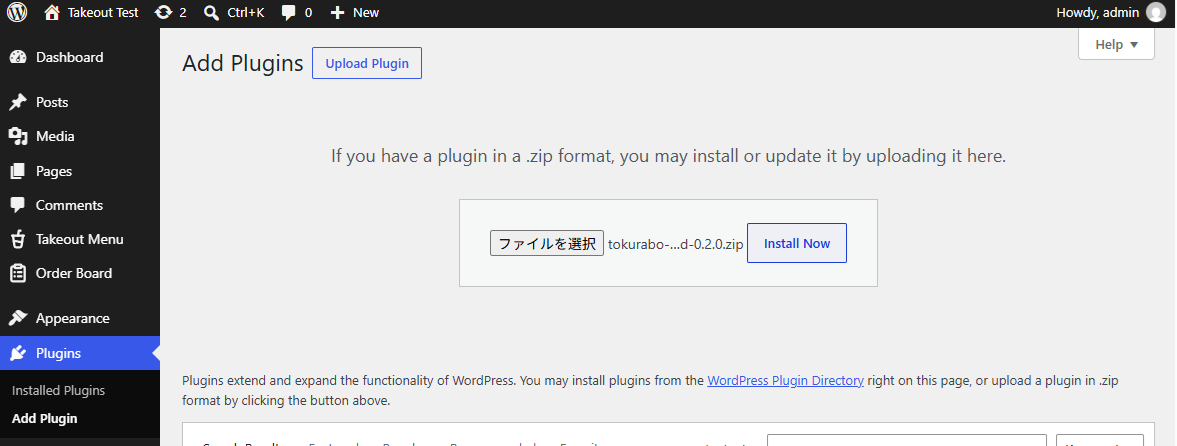
After you activate it, Order Board appears in the admin menu, just below Takeout Menu.
-
2Enter your license key
If you buy the license from inside WordPress, it turns on automatically and you can skip this step (see License for how to buy). If you already have a key, enter it here.
Click Order Board in the admin menu (or Order Board > Settings). Until you enter your license key, this opens the screen for the key.
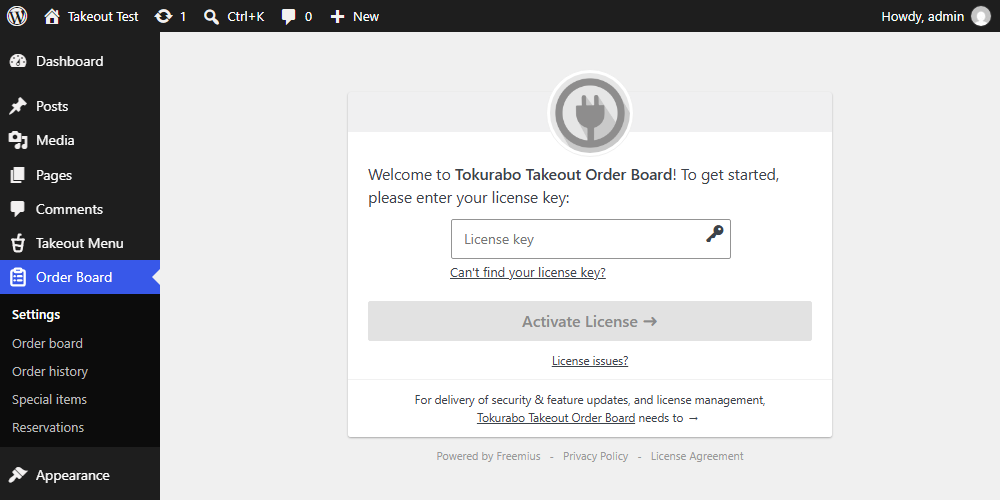
- Copy your license key (it starts with
sk_) and paste it in the License key box. See Enter your license key for where to find it. - If you are asked whether you want emails about security and feature updates, choose Yes or No.
- Click Activate License.
When you activate the license, Freemius, the service that manages our licenses, receives your site URL, your WordPress and PHP versions, and the name and email address of the WordPress user who activates it. Orders and customer data are not sent.
- If you cannot find the email, click Can't find your license key? and enter the email address you used to buy, then click Send License Key. The key is sent again.
- To change the key later (for example, after you buy a new license), go to Order Board > Account and click Change License.
- Copy your license key (it starts with
-
3Make sure your emails arrive
Order Board sends emails to your customers each time staff tap a button such as Accept or Ready. If your emails land in spam, customers will miss them. If you have not done it yet, set up an SMTP plugin as described in Takeout Orders guide: First Setup, step 3.
-
4Check the emails to your customers
Go to Order Board > Settings.
- Email logo: click Choose a logo and choose your logo from the Media Library. A wide logo works best. It is shown 56 pixels tall at the top of each email. Without a logo, your shop name (Shop name in Takeout Orders Order settings) is shown instead.
- Emails to customers: there are six emails that can be sent.
Email When it is sent Order confirmation When a customer places an order. It replaces the plain text email from Takeout Orders with an easy-to-read email. Order accepted When staff tap Accept. Delayed When staff tap Delay. Pickup time changed When staff change the pickup time with Change time and choose to email the customer. Ready for pickup When staff tap Ready. Cancelled When staff cancel an order with Cancel order and choose to email the customer. For each email you can:
- turn it on or off with Enable (all are on at first),
- change the Subject, the Opening text and the Closing text. If you leave a box empty, the default text (shown in gray) is used. Click Fill in the default text to start from the default text,
- click a tag such as
{customer_name}to put the customer's name, the order number and so on in the text, - click Preview to see the email before you save. It uses your newest order (or a sample order if there are none yet). Nothing is sent.
Click Save Changes at the bottom to save your changes.
Emails to the shop (the new order email) are plain text emails, as in Takeout Orders.
-
5Other settings
Pickup times > Last order How many minutes before your hours end customers can still choose a pickup time. For details, see Last order. Order form > Order notes Adds a Notes for the shop box at the end of the order form, where customers can write a note (up to 500 characters). The note is shown on the order board and in the order confirmation email. Special items For seasonal pre-orders and similar items. For details, see 4. Seasonal pre-orders. Styles Leave it as it is. It is for web designers (see the manual). -
6Make accounts for your staff
If staff use the order board with an administrator account, they may change your settings by mistake.
Go to Users > Add New User, and choose Order board staff as the Role. Staff with this role see only the Order board, Order history and Reservations. They cannot change settings or other parts of your site.
We recommend giving each staff member their own account. The board keeps a record of who did what, so you can check the history later.
-
7Open the order board on your tablet
On the tablet, log in to WordPress and go to Order Board > Order board. The order board opens on its own screen, without the WordPress menus. (On a PC, it opens in a new window.)
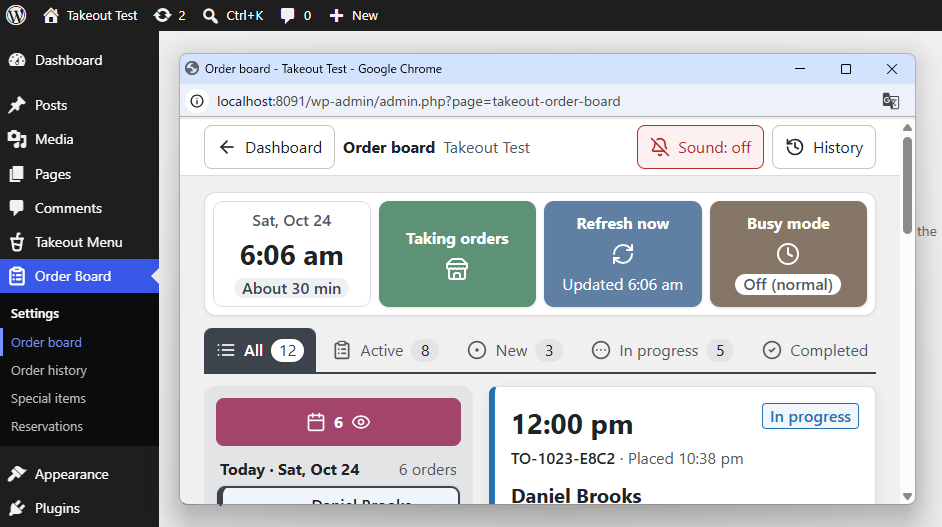
When you open the board, tap the bell icon at the top right to turn on the chime. When you turn it on, the chime plays once, so you can check the volume. Each time you reopen the board, check that the chime is on.
Normally, keep the board open. While the board is open, the tablet's screen stays on (it does not lock or go to sleep). This works only on current browsers, on a site with https.
-
8Place a test order
Place a test order with your own email address to check that everything works. Within 20 seconds, the order appears on the board with a chime. Tap Accept, tap Yes, and check that the "Your order is confirmed" email arrives.
To remove the test order afterwards, log in to WordPress as an administrator, find it in Order Board > Order history, and click Delete permanently.
Every day
2. Using the Order Board
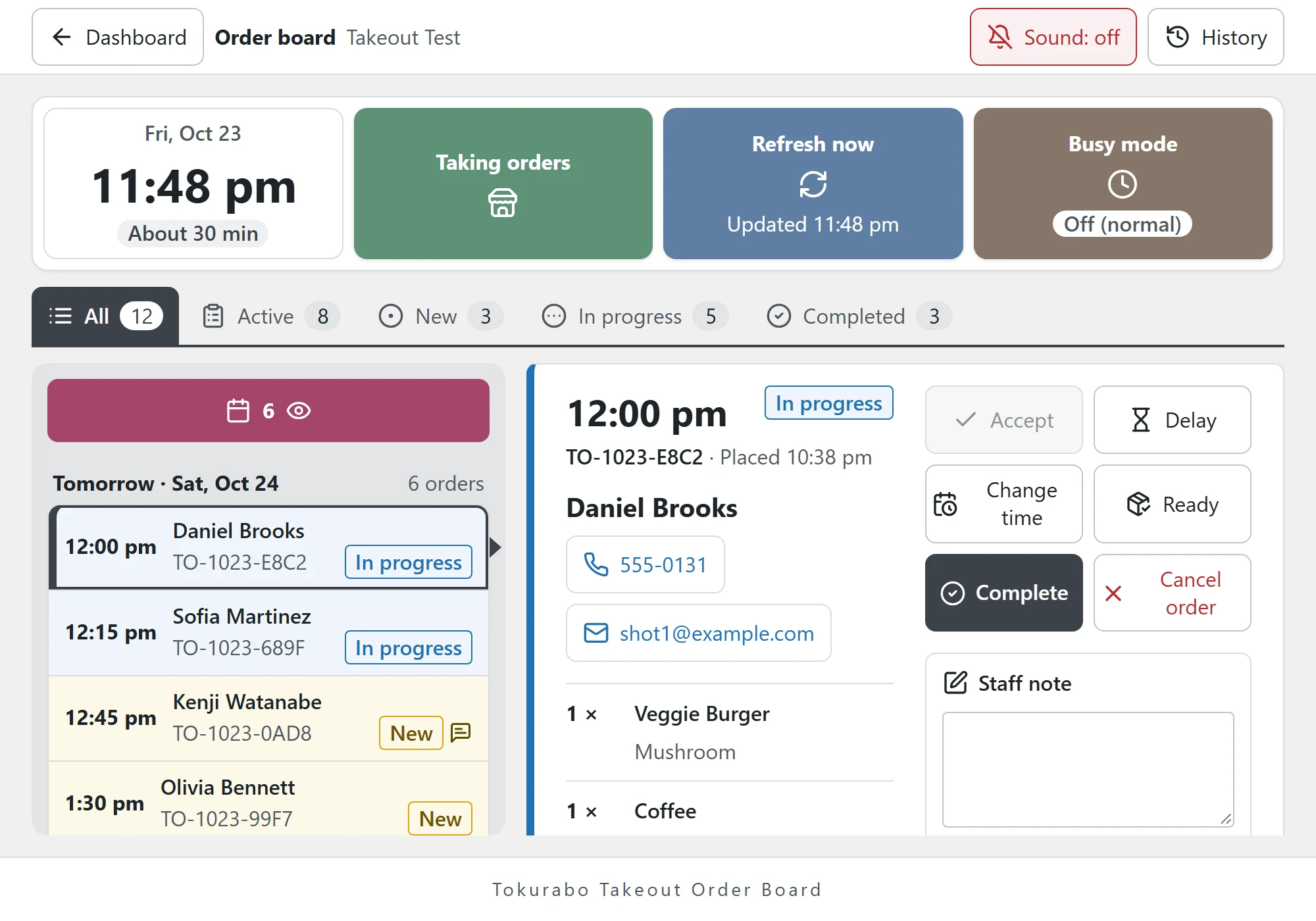
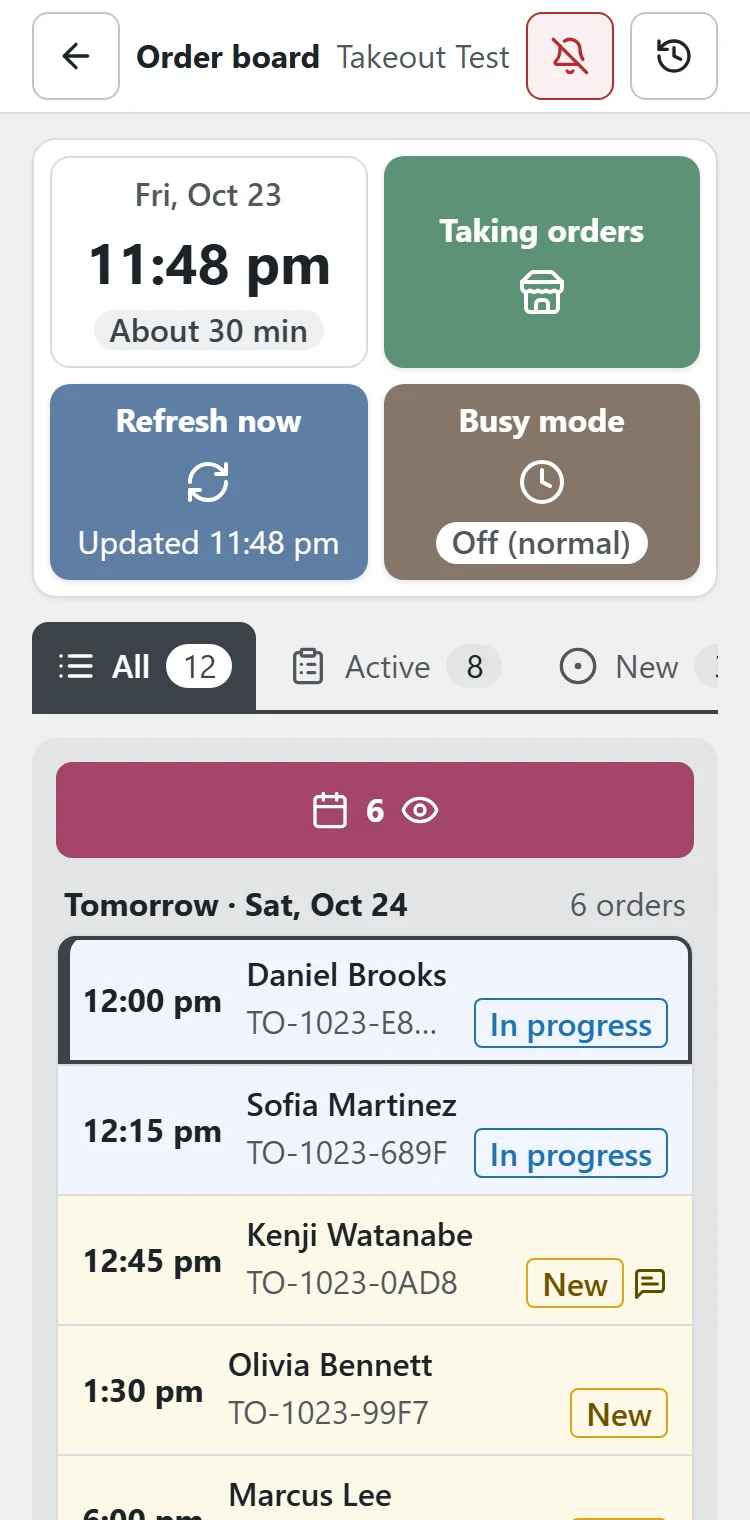
What is on the screen
- The top bar: Dashboard (back to the WordPress admin), the bell (sound on or off), and History (the last 50 actions on the board).
- Four boxes:
- The clock, and the pickup estimate customers see now (for example "About 30 min").
- Taking orders or Orders paused. Tap it to stop or resume orders.
- Refresh now, and the time the board last checked for orders. The board checks every 20 seconds by itself.
- Busy mode. For details, see 3. Busy Mode and Stopping Orders.
- Tabs: All, Active (New and In progress), New, In progress and Completed, with the number of orders.
- The list of orders: in pickup time order, grouped by day. New orders are yellow and orders in progress are blue. Completed and cancelled orders are pale and come at the end of each day. ASAP orders are shown at their estimated time. Orders marked To be arranged (no pickup time yet) come first in the day they were placed.
- Order details: tap an order in the list to see its details (the pickup time, the customer's name, phone and email, the items, the subtotal, and the buttons).
On a tablet or PC, the list is on the left and the order on the right. On a smartphone (or half a tablet screen), only the list is shown. Tap an order to see its details, and tap Back to list to go back.
When a new order comes in
- If the chime is on, it plays. While there are still New orders for the day, it plays every 20 seconds.
- A yellow banner "1 new order. Tap to view." appears at the top. Tap it to jump to the order.
- The order has a NEW label until someone taps a button on it.
Buttons in the order details
| Button | When to tap it | Status | Email to the customer |
|---|---|---|---|
| Accept | You have checked the order and will prepare it. | In progress | Order accepted |
| Delay | The order will be late. | No change | Delayed |
| Change time | The customer asked for another pickup time. | No change | Pickup time changed (if you choose) |
| Ready | The order is ready, and you want to tell the customer to come. | No change | Ready for pickup |
| Complete | You have handed over the order. | Completed | None |
| Cancel order | The order is cancelled. | Cancelled | Cancelled (if you choose) |
- The button to tap next is green (Accept for a New order, Complete for an order in progress).
- Buttons you have already used turn gray. You can still tap Accept or Ready again to send the same email again (the status does not change).
- Using Ready is up to you. If your customers come at the pickup time anyway, you can skip it.
- You can tap Complete without Accept, for example when you hand over an order right away.
- After the email is sent, "Email sent to the customer." appears at the bottom. If it could not be sent, a red message appears. The order still changes, so contact the customer another way.
Delay
Choose +15, +30 or +45 min. The new pickup time is shown. You can add a short message to the customer (optional). Tap Delay and email. The pickup time of the order moves back by that much, and the customer gets the new time by email.
Change time
Use this when the customer asks you, by phone for example, to change the pickup time. Choose the new date and time, then tap Yes, or Yes, and email the customer. The pickup time in Takeout Orders changes too. Use it also to set the time of an order marked To be arranged.
Cancel order, and undo
Tap Cancel order, then Yes, or Yes, and email the customer. If you cancelled by mistake, tap Undo cancel to put the order back as it was. (An email that has been sent cannot be taken back.)
In the same way, a completed order has Undo complete.
Notes
- Notes from the customer are shown in a yellow band under the items. Check them for allergies and requests.
- Staff note: a note for your staff, such as "Called the customer, coming at 6". Customers never see it. It is saved as you type ("Saved").
- Under the staff note is the history of the order: who tapped which button, when, and whether the email was sent. It cannot be edited.
Orders from earlier days
Orders from earlier days that are not completed or cancelled are hidden at first. A yellow button at the top of the list shows how many there are. Tap it to show them, and complete or cancel them. (Orders older than 30 days are not shown.)
At pickup
- The customer tells you their name or order number (for example TO-1016-A3F9).
- Ring up the items in your POS app as usual, and take payment.
- Hand over the order and tap Complete.
Busy times
3. Busy Mode and Stopping Orders
Busy mode: push back pickup times
Tap Busy mode on the board and choose one. It works as soon as you tap it.
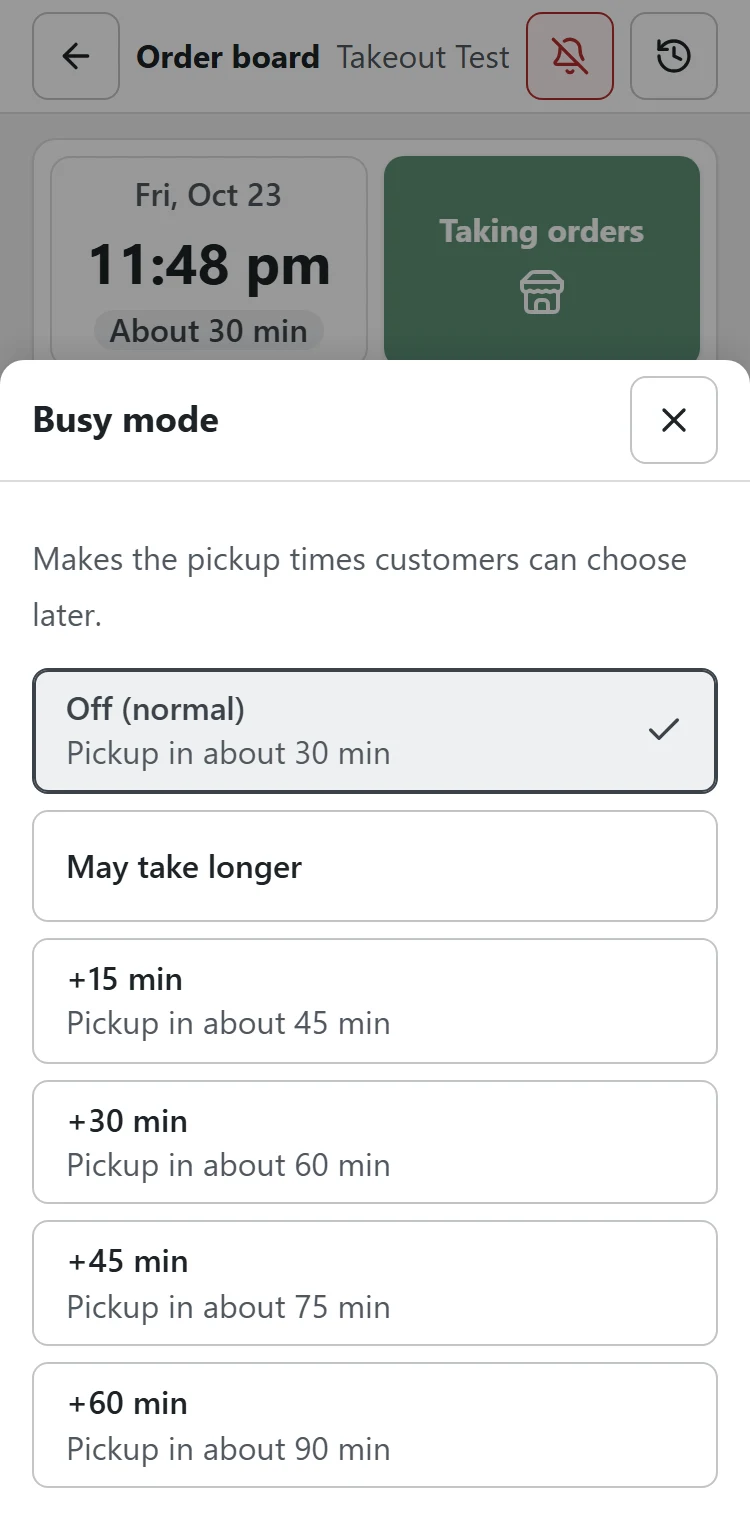
| Off (normal) | Normal pickup times. |
| May take longer | Pickup times do not change. Customers only see "We are busy right now, so your order may take longer than usual." on the order form. |
| +15 to +60 min | Adds that much to the preparation time, so the earliest pickup time for today and ASAP come later. Customers also see the "We are busy" message. Pickup times for tomorrow and later do not change. |
Orders already placed do not change. Busy mode stays on until you turn it off, even the next day. While it is on, the box blinks orange.
Stop taking orders for a while
Tap Taking orders on the board, then Stop taking orders. Your menu stays on your site, but customers cannot place orders. The box turns red and blinks. To start again, tap Orders paused, then Resume taking orders.
This is the same switch as Stop taking orders in Takeout Orders (Takeout Menu > Order settings). Staff can use it from the board.
Last order
To stop pickup times a little before closing, an administrator sets Order Board > Settings > Pickup times > Last order. For example, with 30 minutes and hours of 11:00–15:00 and 17:00–21:00, customers can choose up to 14:30 and 20:30.
Pre-orders
4. Seasonal Pre-orders
Take pre-orders for special items such as holiday cakes, Thanksgiving pies or party platters, each with its own pickup dates, deadline and limit. The order board counts the orders for you, and Reservations shows how many to make for each pickup day.
Pre-orders need Tokurabo Takeout Menu 0.3.0 or later and Tokurabo Takeout Orders 0.2.0 or later.
-
1Make a menu for pre-orders in your POS app
In your POS app (such as Square), make a separate menu for pre-order items (for example "Holiday pre-orders") and add the items to it.
- Do not add the same items to your usual menus. If you do, they are treated as usual items.
- Do not check this menu in Menus to show in the Takeout Menu settings.
-
2Choose the menu
Go to Order Board > Settings. Under Special items, choose the pre-order menu you made in your POS app in Menu for special items and click Save Changes. The items are brought in at the next sync. To bring them in right away, click Sync now in the Takeout Menu settings.
-
3Set the rules for each item
Go to Order Board > Special items. The items in your pre-order menu are listed. Click Edit rules (or the item) to open its rules.
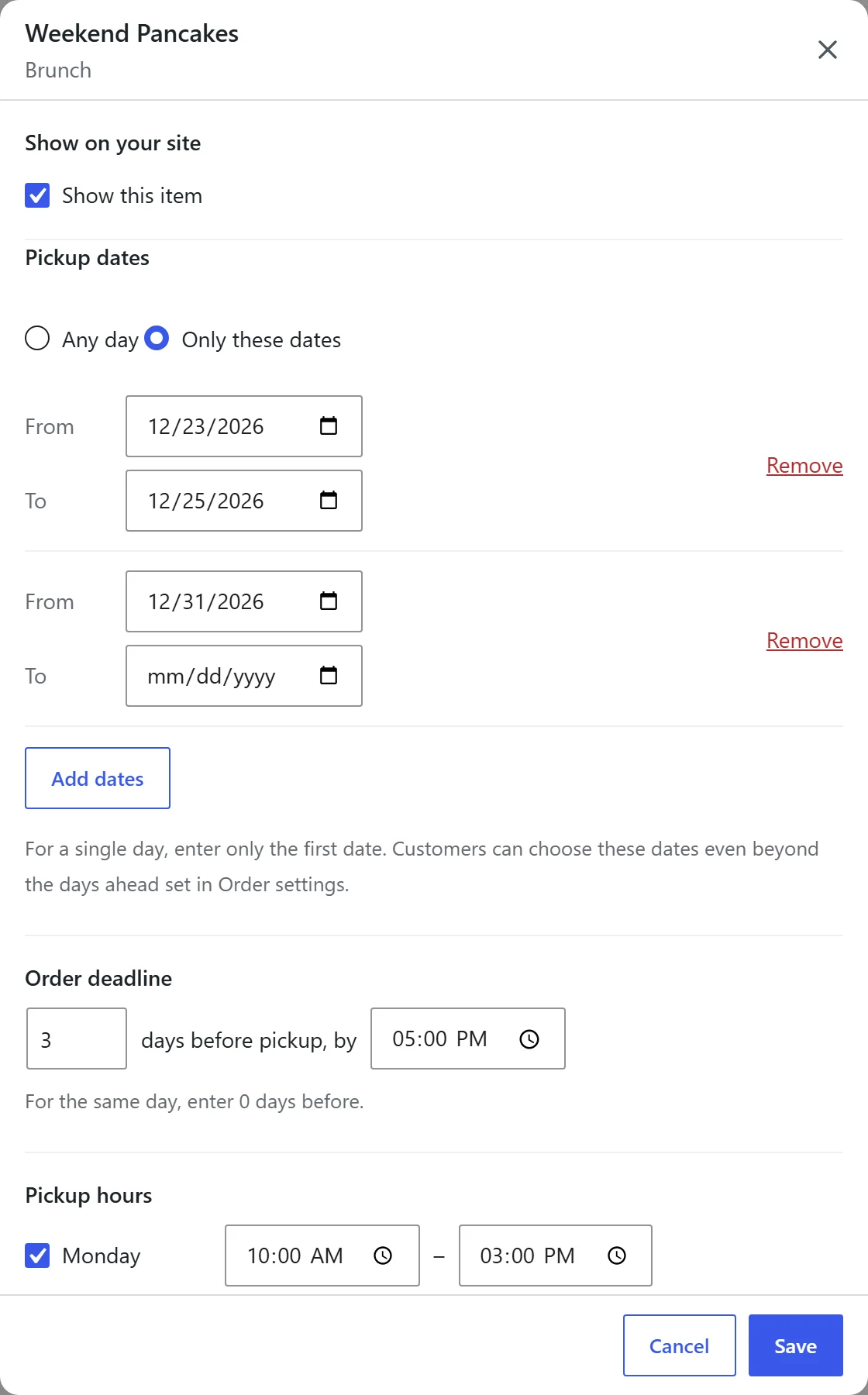
Setting What it means Show on your site Check Show this item to show it on your site. Pickup dates (required) Any day, or Only these dates (add one or more periods. For one day, enter only the first date). Order deadline (required) How many days before pickup, and by what time. For the same day, enter 0 days. Pickup hours (required) The days of the week and the hours when the item can be picked up. One period per day. Orders open on The day you start taking orders (optional). Before that, the item shows "Coming soon". Minimum quantity Orders below this quantity are not accepted.
If you set a quantity limit, orders are also not accepted when fewer than this quantity are left (the item is shown as sold out).Quantity limit No limit, Per day or In total, with the number. If you track stock in Square, the smaller number is used. Click Save.
-
4Place the item on a page
In the WordPress editor, add the Takeout Special Item block where you want the item, and choose the item in the block settings on the right. The layout can be Cards, Wide or List.
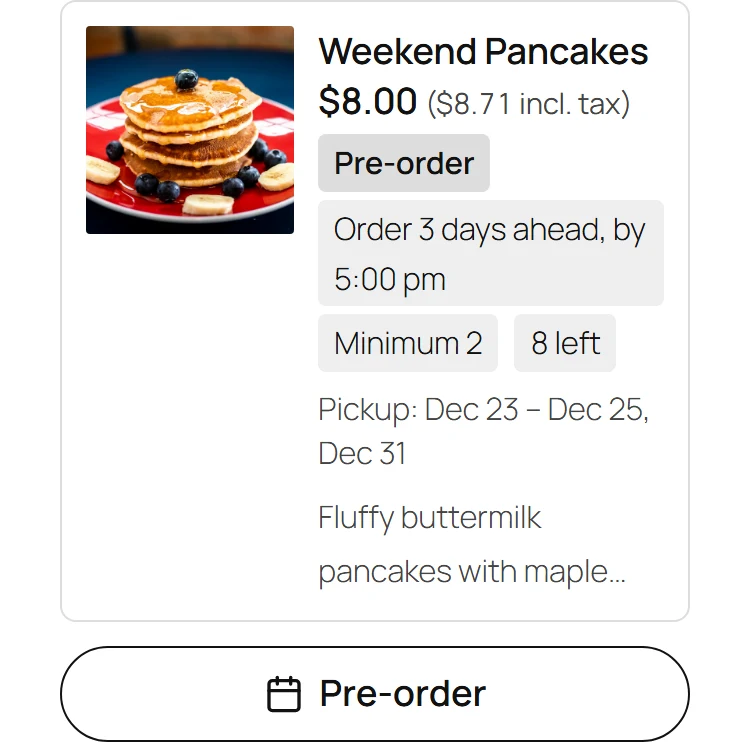
Customers tap Pre-order and order the item in its own cart, choosing one of the pickup dates. The label on the item changes by itself:
Coming soon Before the day orders open. Pre-order Taking orders. The deadline, the minimum quantity and how many are left (with a limit in total) are shown. Sold out The limit or the stock in Square has been reached. Orders closed No pickup date can be chosen any more (after the deadline).
Pre-orders on the order board
Pre-orders come in like other orders and appear on the board on their pickup day, with a rose-colored Pre-order label (and a calendar icon in the list). Accept them when you have checked them.
If accepted pre-orders for later days fill up the list, tap the rose button at the top of the list to hide them. Tap it again to show them.
Reservations: what to make for each day
Go to Order Board > Reservations. For each pickup day, you see each item with the total to make, and a table of who ordered what.
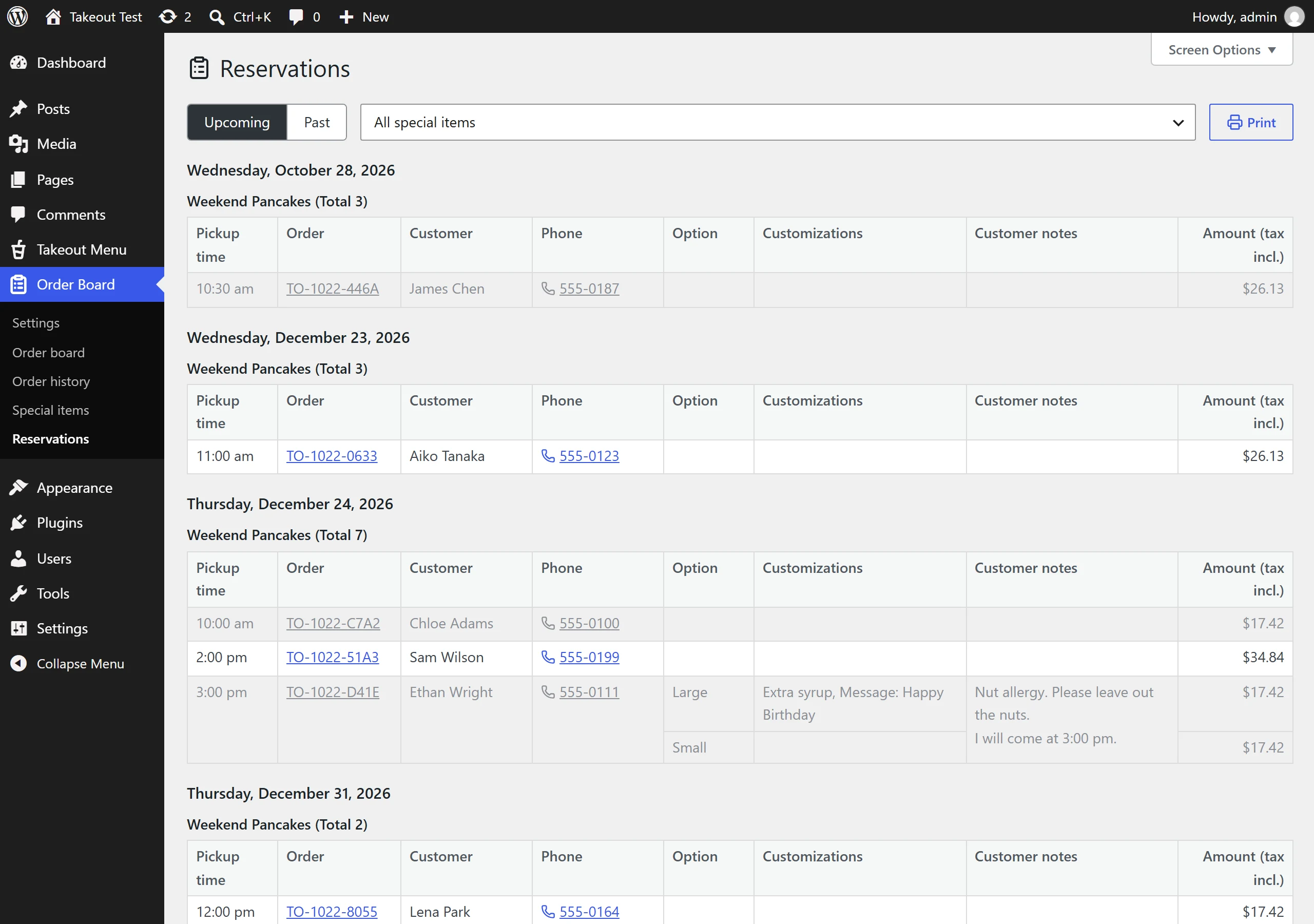
- Upcoming shows today and later. Past shows earlier days.
- Choose an item to see only that item.
- Print gives a print-ready layout, so you can, for example, print the list and post it in the kitchen.
- Click an order number to see the order.
- To choose which columns are shown, use Screen Options at the top right.
- Administrators can download a CSV file when the list is narrowed to one item.
- Cancelled orders are shown in gray and not counted in the total.
At pickup
As with other orders, ring up the items in your POS app and tap Complete on the board. If you count stock in Square, always ring up pre-orders in your POS app. Order Board only reads the stock in Square. Ringing up the order is what lowers the stock.
After the season
For an item with Only these dates, after the last pickup date the rules window shows "This pre-order has ended. To use it again, reset it." Click Reset. The next page shows how many orders will be deleted, with buttons to download a CSV file first. Resetting deletes the item's orders and clears its rules, so you can set them up again.
For an item with Any day, click Delete past reservations at the bottom of its rules to delete orders whose pickup date has passed.
Only administrators can reset or delete.
Records
5. Finding Past Orders
The order board shows today and later. To find a past order, go to Order Board > Order history.
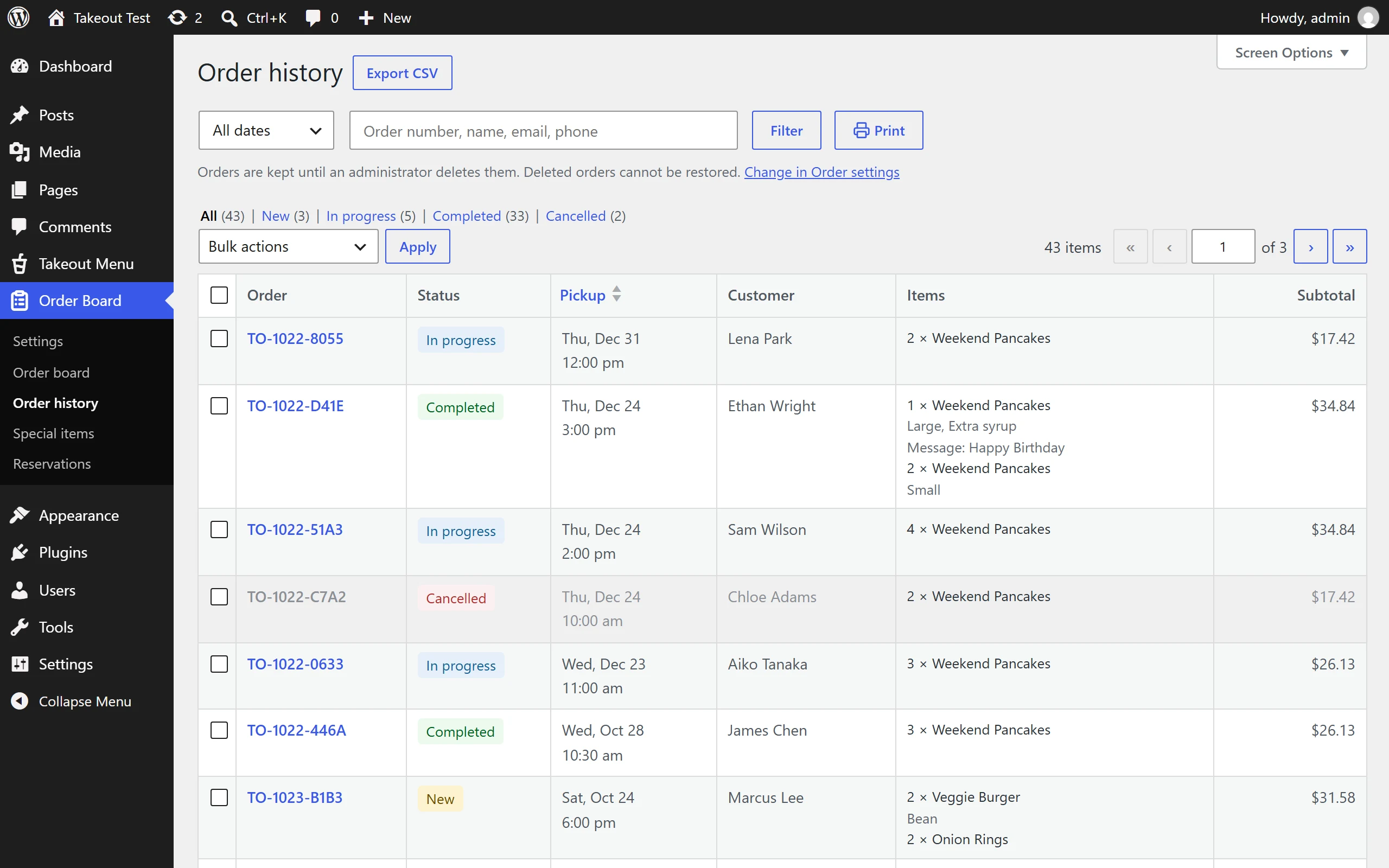
- Choose a period (by pickup date): Today, Yesterday, Last 7 days, This month, Last month, All dates or Custom range.
- Narrow it by status (New, In progress, Completed, Cancelled), or search by order number, name, email or phone.
- Click an order number to see the order and its history.
- Print prints the list. To print only some orders, check them and choose Print selected.
- Administrators can also export to CSV and delete orders.
The total under the list is a guide. The final amounts are in your register.
How long orders are kept follows Keep orders for in Takeout Orders (Takeout Menu > Order settings). Deleted orders cannot be brought back.
Help
6. When Something Does Not Work
| What happens | What to check |
|---|---|
| The chime does not play | Tap the bell at the top each time you open the board, and check the volume of the device. The board does not chime while it is hidden behind another tab or app. |
| The screen turns off | Update the browser. If it still turns off, change the screen timeout in the device settings. |
| "Offline. Retrying…" | The tablet cannot reach your site. Check the internet connection. The board keeps trying and comes back by itself. |
| "You have been signed out." | Tap Reload and log in again. |
| Customers do not get the emails | If the email is on in Order Board > Settings but does not arrive, it may be going to spam. If you do not use an SMTP plugin yet, consider setting one up (Takeout Orders guide). |
| Clicking Order Board in the admin menu opens Settings | For administrators, the menu heading opens Settings. Click Order board under it. |
| Pickup times are later than usual | Busy mode may still be on. It stays on until you turn it off. |
| A pre-order item is not shown on the page | In Order Board > Special items, check that it says Shown, and that its rules are set correctly. |
| The screen for the license key appears again | The license is no longer on your site (for example, after a refund). Enter a valid license key (First Setup, step 2). |
If your license expires
If a payment fails or your license expires, you have 7 days to fix it.
- During those 7 days, the order board shows a red banner such as "Payment could not be confirmed. The order board stops in 5 days." Administrators also see a warning on the Order Board screens in the dashboard.
- After 7 days, the order board, the status emails and pre-orders stop. Online orders still arrive by email from Takeout Orders, and your orders and settings are not deleted.
- If a license is refunded, Order Board stops right away.
To continue, do either of these. Order Board starts again right where it stopped.
- Keep your current license: this is usually an expired card. In the warning, click Update payment method and update your card.
- Switch to a new license: if you bought a new license, go to Order Board > Account, click Change License and enter the new key.
For more details (all settings, how statuses and emails work, pre-order rules, privacy, and customizing), see the manual.
Get it
Get Takeout Order Board
Tokurabo Takeout Order Board is a paid plugin. It is not on WordPress.org.
$29 per month or $299 per year. See the License page for how to buy.
Buy a license