
About
What Is Takeout Orders?
Tokurabo Takeout Orders is a free WordPress plugin. It adds a cart and an order form to the menu shown by Tokurabo Takeout Menu. Customers choose items, pick a pickup time and send the order. You get an email, and the order is saved in your WordPress admin (Takeout Menu > Orders).
An order here is a pickup reservation, and nothing is paid online. The order is not sent to your POS app (such as Square) either, so ring it up in your POS app as usual when you hand over the items.
What you need
- Tokurabo Takeout Menu, set up and showing your menu on a page (Takeout Menu guide)
- Your WordPress admin login
- An email address where you want to receive new orders
Step by step
1. First Setup
-
1Install the plugin
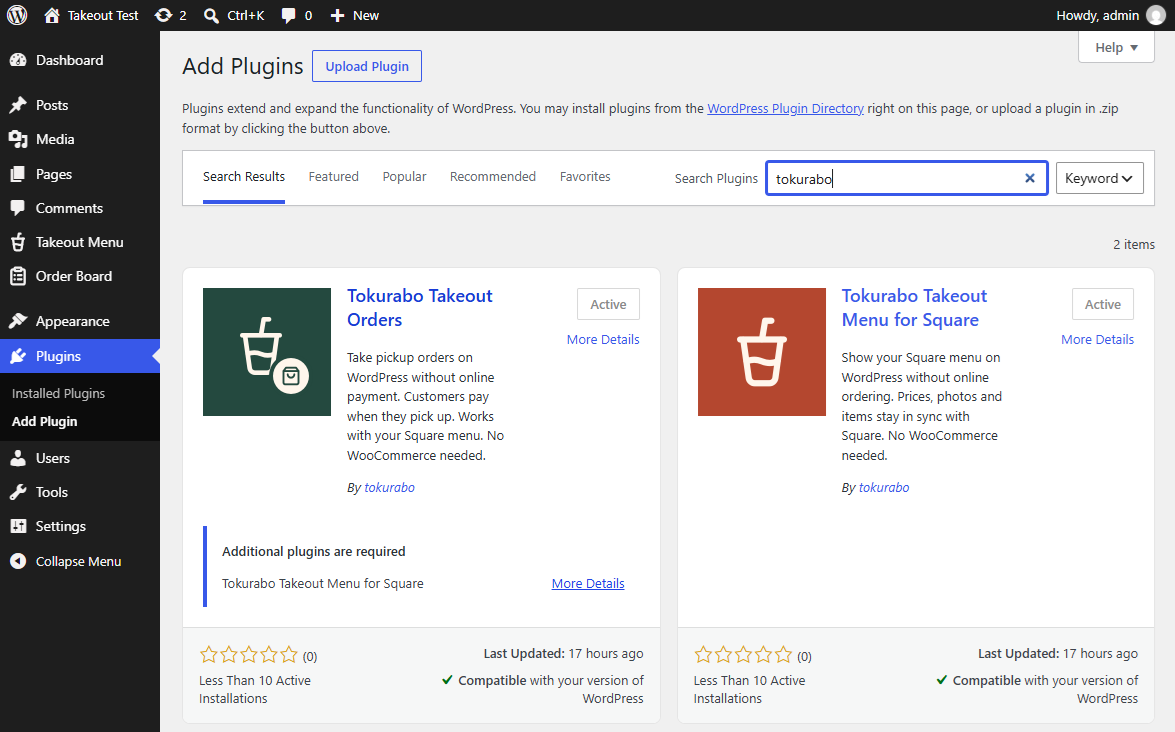
In your WordPress dashboard, go to Plugins > Add Plugin and search for Tokurabo Takeout Orders. Click Install Now, then Activate.
If Takeout Menu is not installed yet, you cannot activate Takeout Orders. Set up Takeout Menu first.
-
2Set your shop name and email address
Go to Takeout Menu > Order settings. Under Order emails, set these two and click Save Changes.
Shop name Shown as the sender name, and in the subject and body of order emails. If you leave it empty, your site title is used. From email address Order emails are sent and received at this address. To receive orders at more than one address, add them separated by commas (up to 5). The first address is used as the sender. If you leave it empty, the site admin email is used. 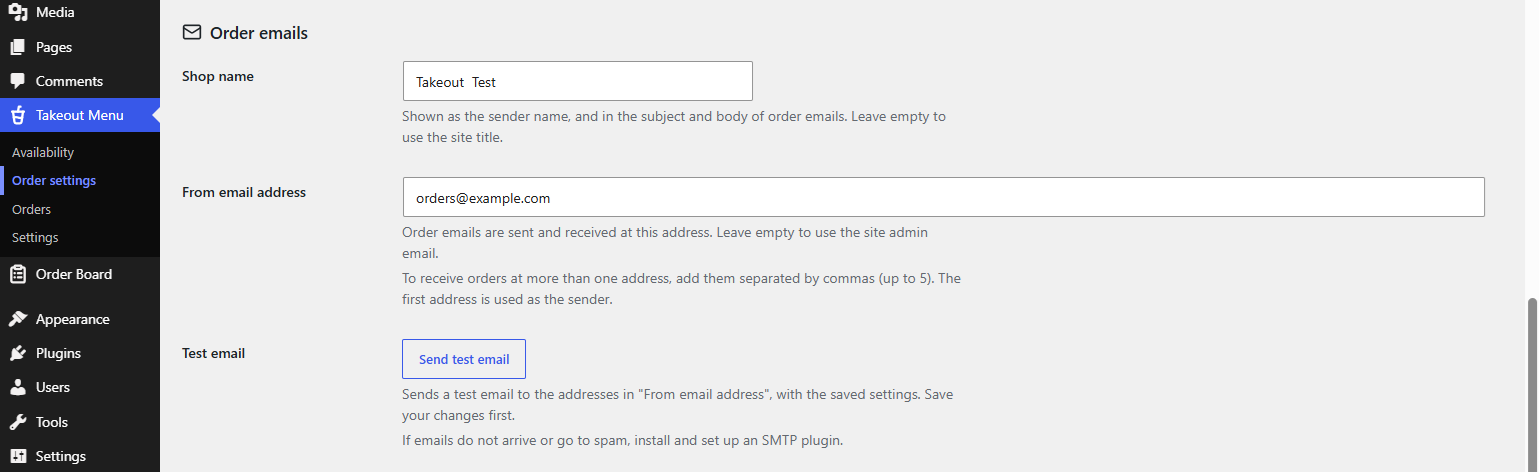
When a customer replies to their confirmation email, the reply goes to the first address in From email address.
After saving, click Send test email and check that the test email arrives at the addresses in From email address. If it does not arrive or lands in your spam folder, we recommend step 3.
-
3Make sure your emails arrive (recommended)
Takeout Orders sends emails the standard WordPress way. If you change nothing, emails are sent straight from your web server. Depending on your server, they may land in your customers' spam folders.
To prevent this, we recommend installing an SMTP plugin such as the free FluentSMTP and setting it to send from your shop's email account. Once it is set up, Takeout Orders emails are sent from your shop's email account too.
- Go to Plugins > Add Plugin, search for FluentSMTP, then install and activate it.
- Go to Settings > FluentSMTP and set these three:
- Email Service: choose the one that matches your email. For email from your hosting company, choose Other SMTP and enter the SMTP server, port, username and password your host gives you. You can also choose Gmail (Google Workspace) and others
- From Email: your shop's email address, ideally on the same domain as your website (for example info@your-shop-domain). Leave Force From Email on (it is on by default)
- From Name: your shop's name. Leave Force Sender Name off (it is off by default). Takeout Orders emails use the Shop name in Order settings
- Click Save Connection Settings.
- Use the Send Test Email button at the top right of FluentSMTP to send yourself an email, and check that it arrives in your inbox, not your spam folder.
Any other SMTP plugin is fine too. For details, see that plugin's documentation.
-
4Set the pickup times
On the same page, under Pickup times, set these three and click Save Changes.
Preparation time How long you need to prepare an order.
(With 30 minutes, an order placed at 12:00 can be picked up from 12:30.)
(Any preparation time set in your POS app is not used.)Time slots The gap between the pickup times customers can choose.
(With 15 minutes: 10:00, 10:15, 10:30 ...)Days ahead How many days ahead customers can order, counting today. 
Customers can choose pickup times within the hours set in your POS app. Many POS apps group items into menus (for example, Lunch and Dinner) and let you set hours for each menu.
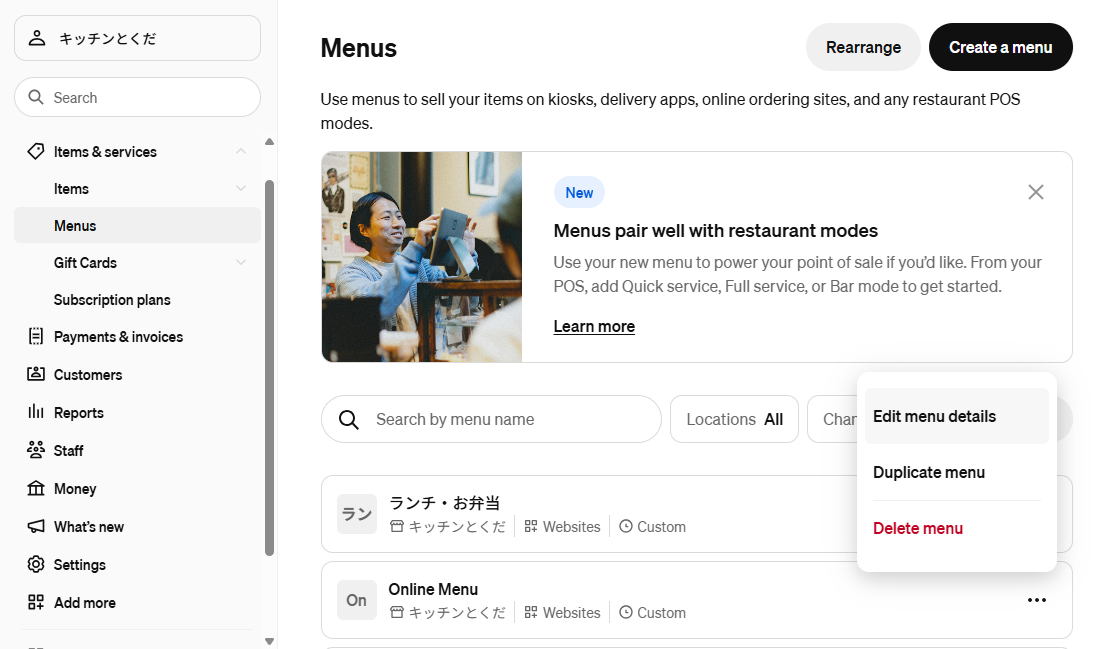
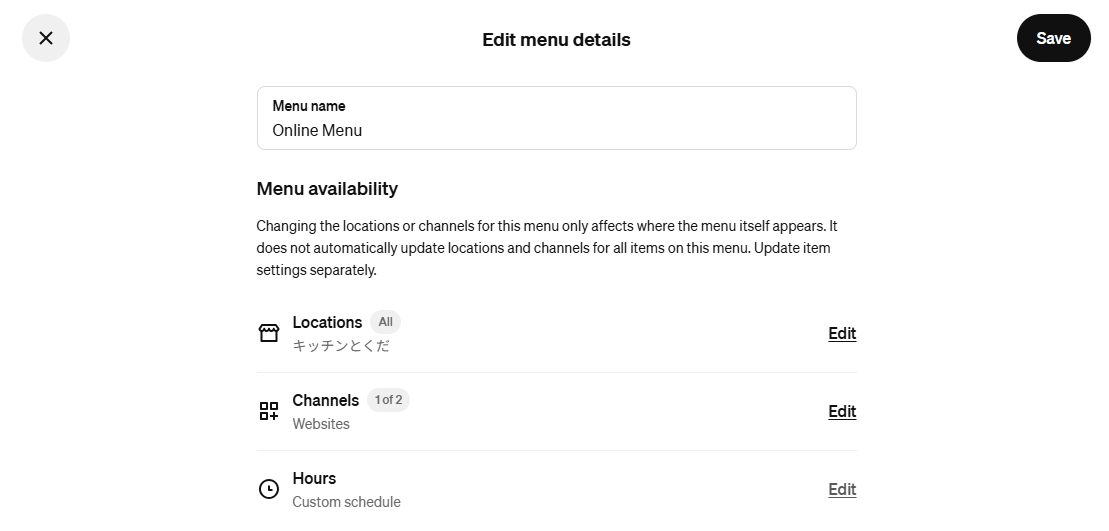
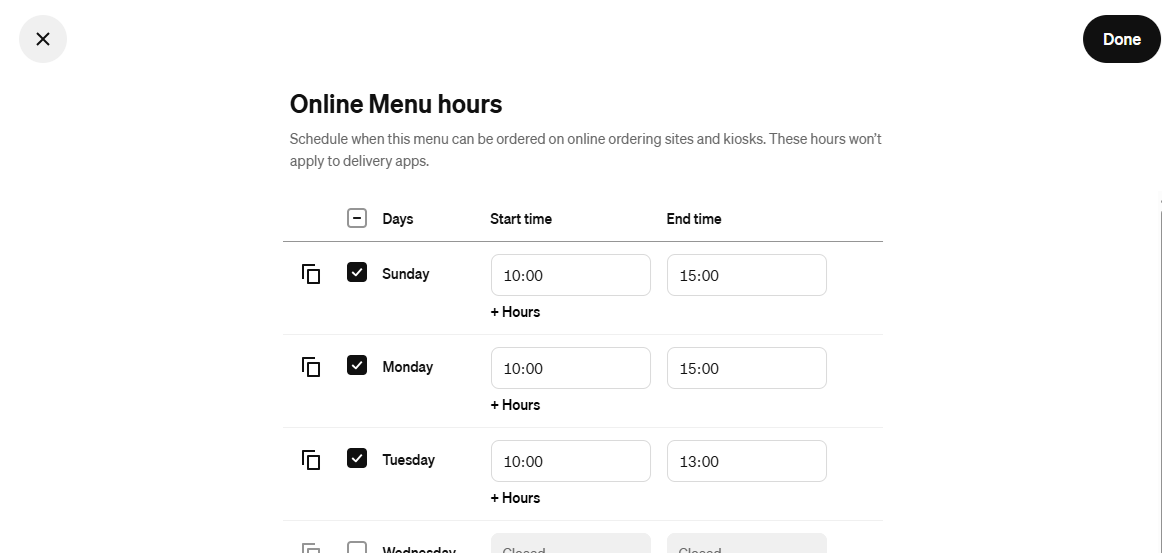
Example of menu hours in Square Items in a menu with no hours can be picked up during your business hours, if you set them in your POS app. To change the hours, change them in your POS app.
If the cart has an item from a menu with no hours (and there are no business hours), the customer cannot choose a pickup time, and the order form says you will contact them about the pickup date and time. When you get such an order, contact the customer to decide the pickup date and time.
For example, if you leave only your cake menu without hours, you can agree on the pickup date for each cake order with the customer. If no hours are set in your POS app at all, every order works this way, and a yellow notice appears under Pickup times.
-
5Message shown on the order form
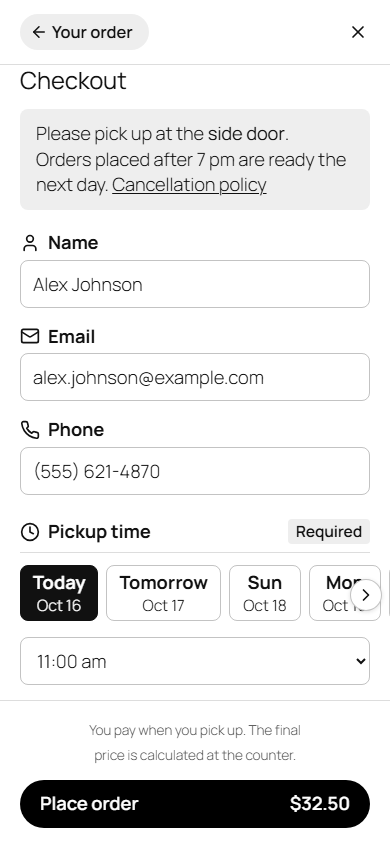
In Order settings, under Checkout > Notice to customers, you can write your own message. It is shown on the order form. Use it for things like where to pick up, parking, or your cancellation policy.
-
6Test an order
Place a test order with your own email address. Then check these three things:
- the order confirmation email for the customer arrives,
- the new order email for the shop arrives at the address you set,
- the order appears in the list in Takeout Menu > Orders.
Once you have checked, delete the test order: in the Orders list, click Delete under its order number.
No email, or something else wrong? See When something does not work.
Orders
2. When an Order Comes In
You get an email
The subject looks like New order TO-1016-A3F9 - pickup Oct 17 12:00 pm. The email shows the pickup time, the customer's name, email and phone, and the items with their options.
To contact the customer, just reply to the email. The reply goes to the customer.
See all orders
Go to Takeout Menu > Orders. Orders for today have a green Today label. Click Pickup at the top of the list to sort by pickup time. To find an order, type part of the order number, name, email or phone and click Search orders.
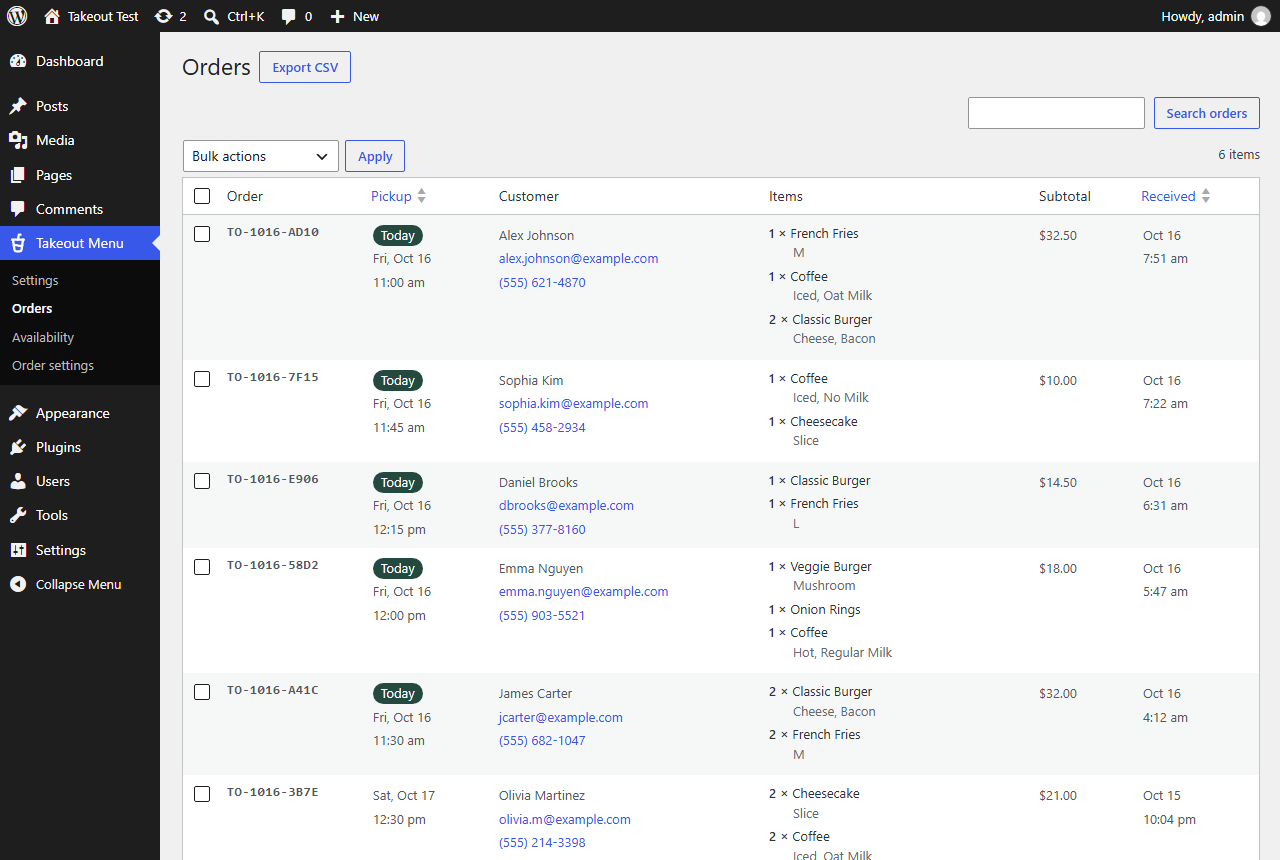
On a smartphone, only the order numbers are listed. Tap one to see the details.
If you cannot prepare something
The customer is told: "If we cannot prepare something, we will contact you." Reply to the order email or call the customer.
At pickup
- The customer tells you the order number (for example TO-1016-A3F9) or their name.
- Ring up the items in your register as usual, and take payment.
- Hand over the order.
Prices on the website are a guide. The final amount is the one in your register.
Everyday use
3. Busy Times, Sold Out Items, Closures and More
Too busy: stop taking orders for a while
Go to Takeout Menu > Order settings and click the red Stop taking orders button. It works right away. Your menu stays on your site, but customers cannot place orders. They see the Message while paused.
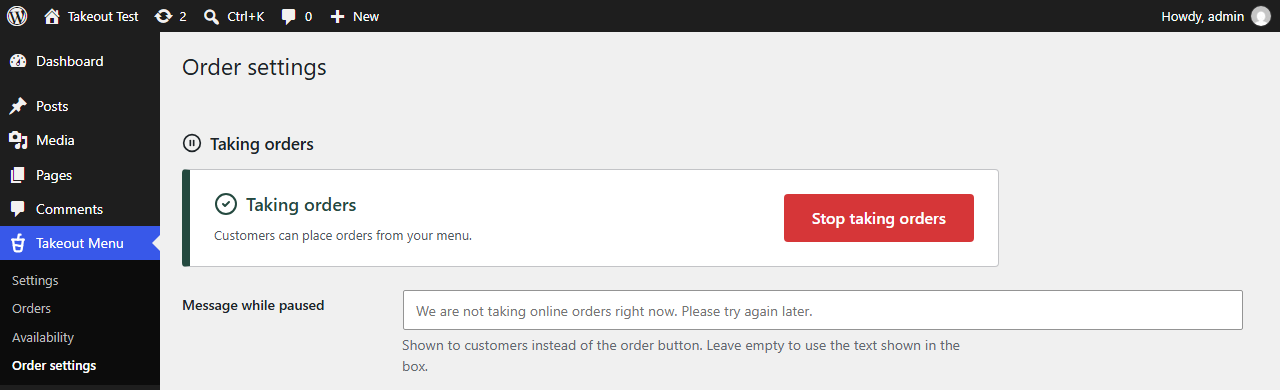
To start again, click the green Resume taking orders button.
An item has run out
Go to Takeout Menu > Availability, uncheck the item, and click Save Changes. It shows as "Sold out" on your menu until you check it again. Syncing with your POS app does not change this.
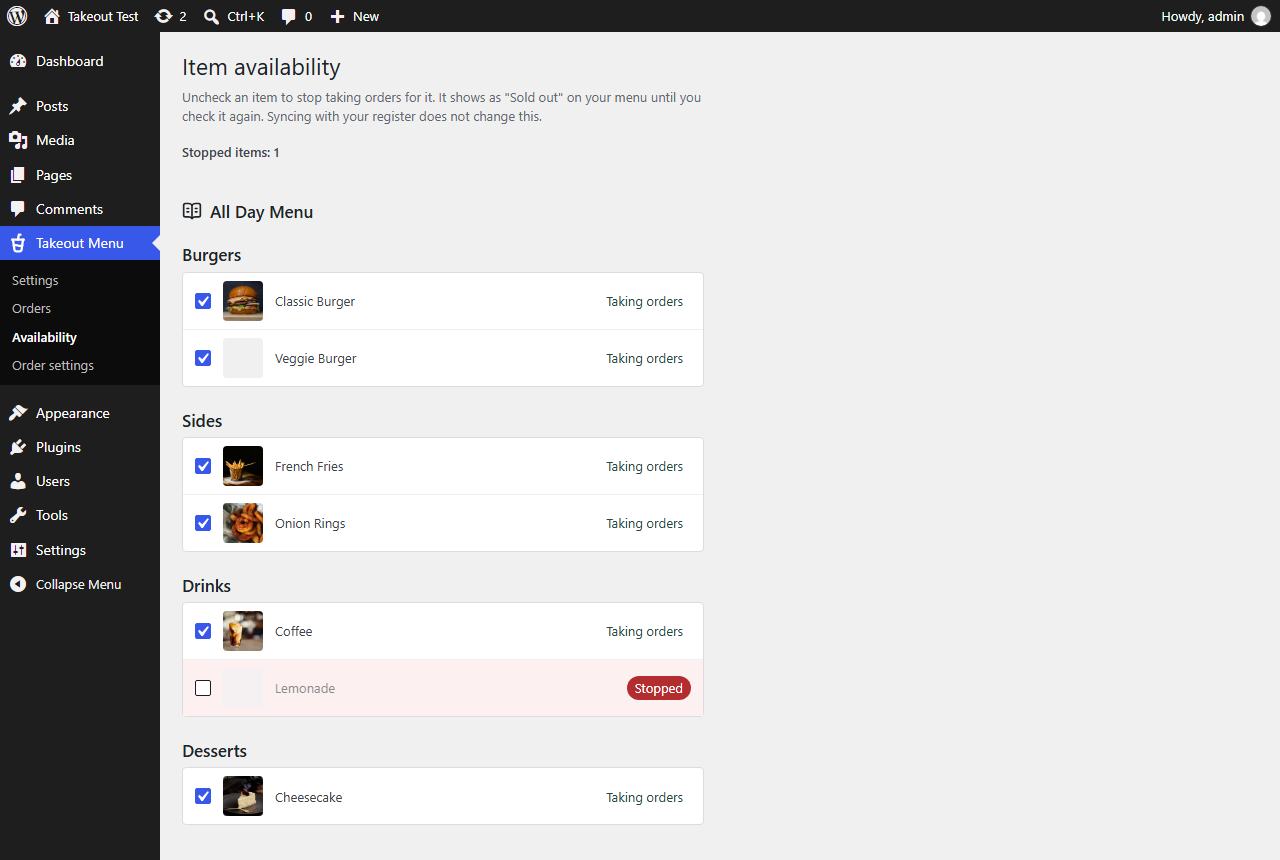
Items marked sold out in your POS app (such as Square) are also shown as sold out (with Sold out at register).
Closures and days with different hours
Go to Takeout Menu > Order settings. Under Special days, click Add a day, choose the date, and choose the Status:
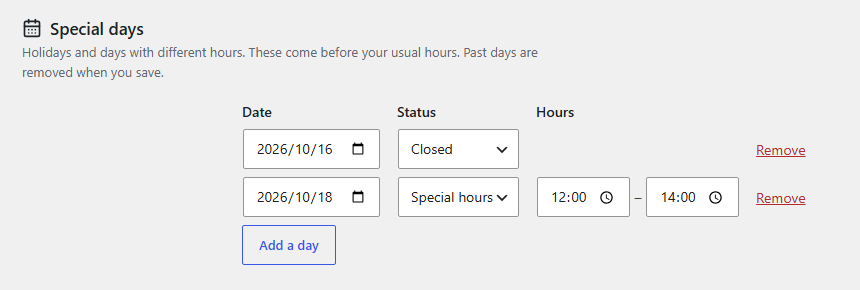
- Closed: customers cannot choose that day when they order.
- Special hours: enter the hours. Customers can choose it for pickup even on a day you are usually closed.
Click Save Changes. Special days come before your usual hours. Past days are removed when you save.
A customer wants to change or cancel
Customers contact you by replying to their confirmation email. Arrange it with the customer directly. If an order is cancelled, you can delete it from the Orders list.
Keeping a record
Click Export CSV at the top of the Orders page to download the orders as a spreadsheet. To delete old orders automatically, set Order history > Keep orders for in Order settings (0 keeps them forever). The current setting is also shown at the top of the Orders list.
Help
4. When Something Does Not Work
| What happens | What to check |
|---|---|
| Order emails do not arrive | Check your spam folder. If emails do not arrive or land in spam, set up a separate SMTP plugin such as FluentSMTP to send from your shop's email account, as in First Setup, step 3. Orders are still saved in Orders. |
| There is no "+" on an item | Check that you are not stopping orders (Order settings), and that the item is not sold out. |
| Customers see "Sorry, there are no pickup times available right now." | Check the hours set in your POS app, Days ahead, and Special days. |
| The pickup times are wrong | Check the hours set in your POS app, then click Sync now on the Takeout Menu settings page. |
For more details (all settings, how pickup times are calculated, emails, privacy, and customizing), see the manual.
Download
Get Takeout Orders for Free
Tokurabo Takeout Orders is free on WordPress.org.
Download from WordPress.orgYou can also install it from Plugins > Add Plugin in your WordPress dashboard.
Add-on
When Orders Pick Up
A paid plugin that works on top of Takeout Orders.
Takeout Order Board Paid
Turns the orders from Takeout Orders into an order board on your shop's tablet. Move each order along with one tap, and the customer gets an email. Busy mode, seasonal pre-orders and an order history are included too.
See Takeout Order Board