
About
What Is Takeout Menu?
Tokurabo Takeout Menu for Square is a free WordPress plugin. It takes the items you have registered in Square (POS app) and shows them on your WordPress website: names, photos, descriptions, prices and taxes, options, and the menus you made in Square.
You keep editing your items in Square as usual. Your website follows automatically, about once an hour. It works for restaurants, cafes, shops, salons, and any other business that uses Square.
This plugin only shows your menu. It does not take orders or payments. Add the free Takeout Orders plugin to take pickup orders from this menu. To see and move those orders along on a tablet in your shop, add the paid Takeout Order Board.
What you need
- A WordPress website that you can log in to as an administrator
- A Square account (the free plan works)
Step by step
1. First Setup
You do this only once. You need two things: your WordPress admin login, and your Square account login.
-
1Install the plugin
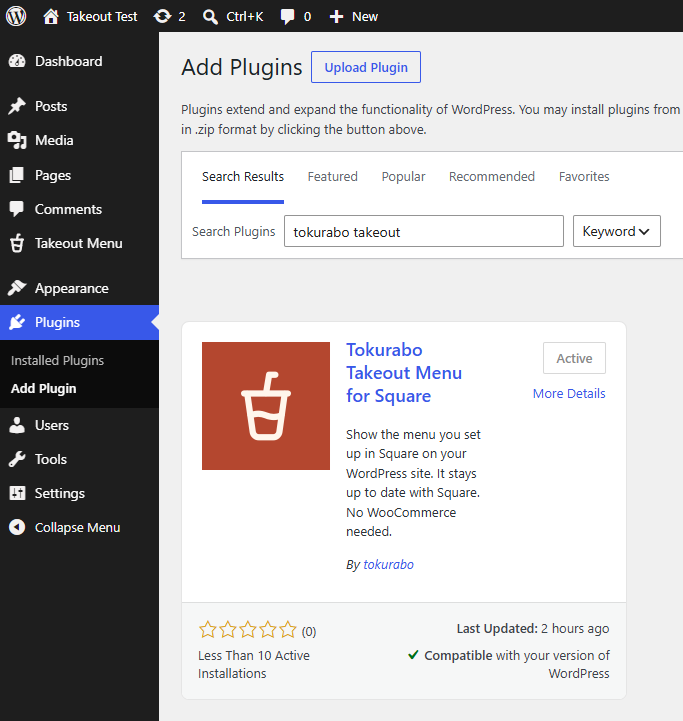
In your WordPress dashboard, go to Plugins > Add Plugin. Search for Tokurabo Takeout Menu. Click Install Now, then Activate.
The plugin page is on WordPress.org (details, changelog, and support forum).
-
2Get your access token from Square
An access token is like a key that lets Takeout Menu get your item details from Square. It only reads them. It never changes anything you have registered in Square.
- Open the Square Developer Console and sign in with your usual Square account.
- Under Applications, click + to create an application. If you already have one, click its Open and go to step 4.
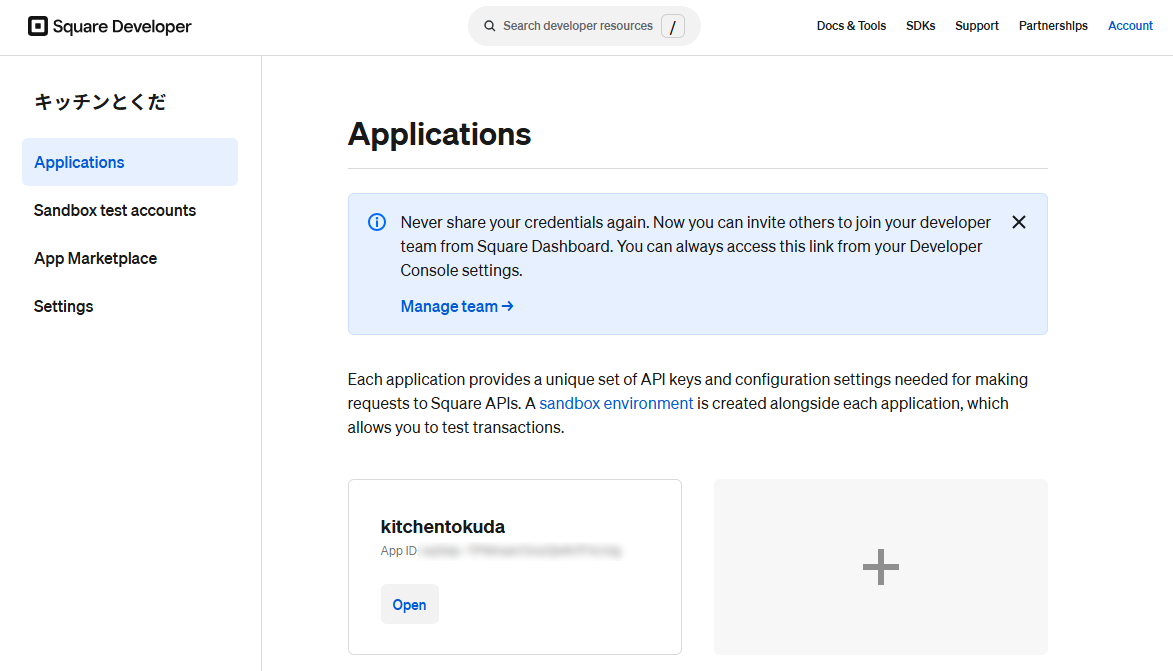
- Enter an Application name (any name is fine, for example "My website"). Check the box to agree to the terms, and click Next.

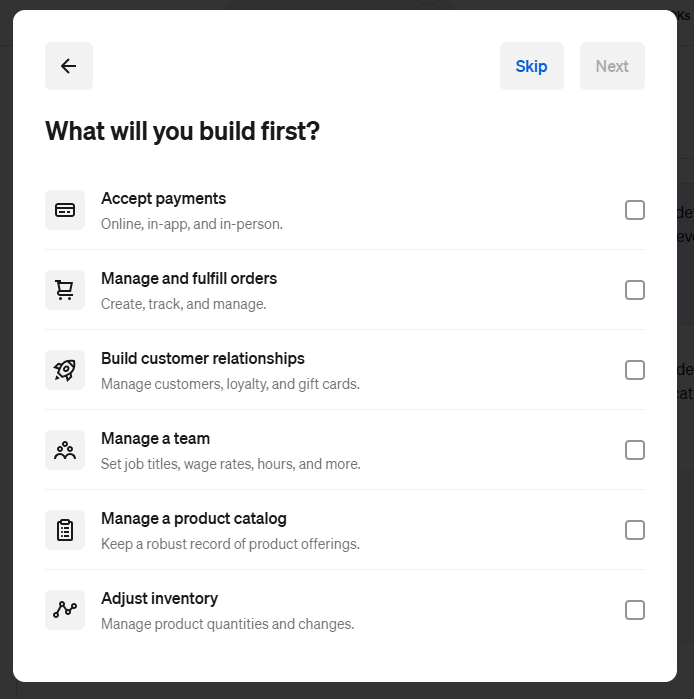
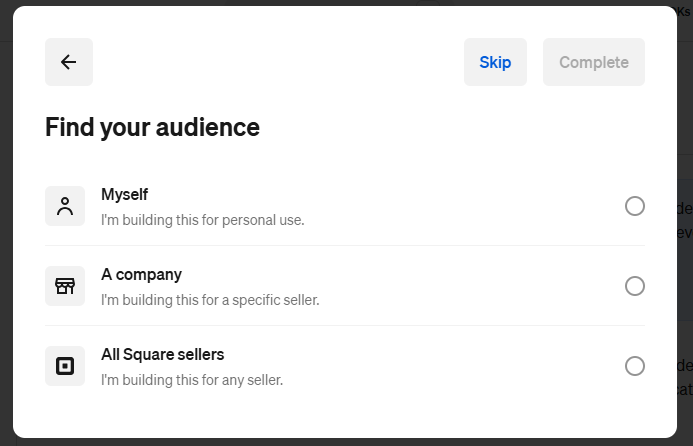
- Two question screens appear (What will you build first? and Find your audience). You can click Skip on both.
- The Credentials page of the application opens. At the top, click Production. It starts on Sandbox (for testing).
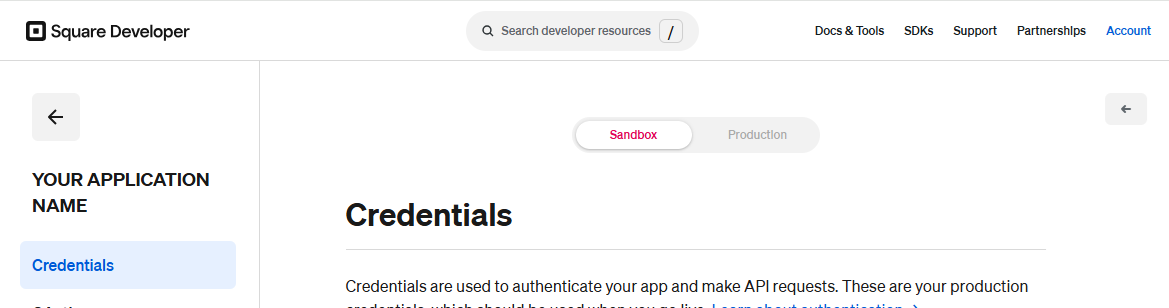
- Copy the Production access token.

Keep the access token secret, like a password. Do not send it by email or post it anywhere. Paste it only into your WordPress settings.
-
3Paste the token into WordPress
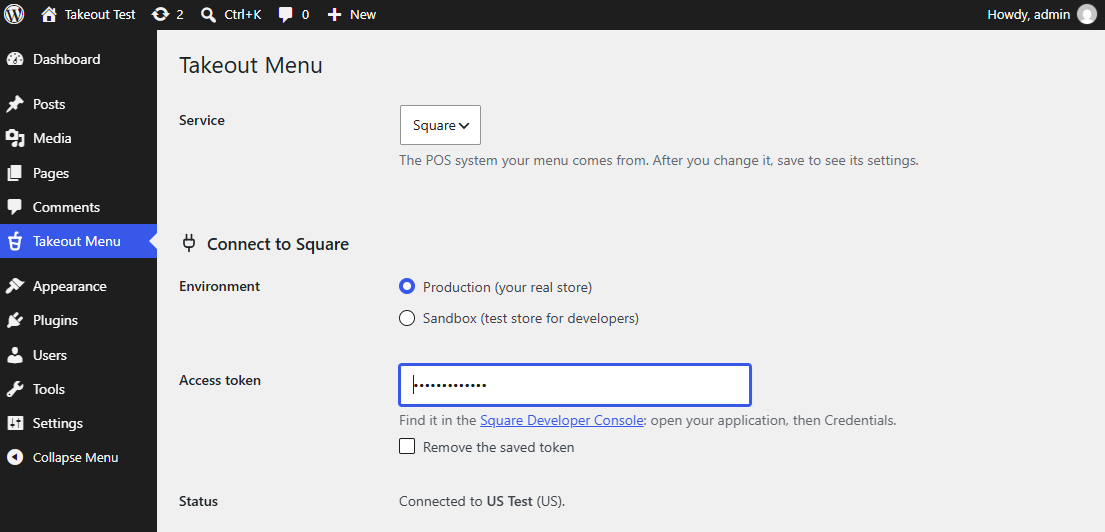
In your WordPress dashboard, open Takeout Menu in the admin menu. Choose Square as the Service. Under Environment, choose Production (your real store). Paste the token into Access token and save.
When it works, Status shows "Connected to your business name (US)." US is your country code.
-
4Choose your location and menus
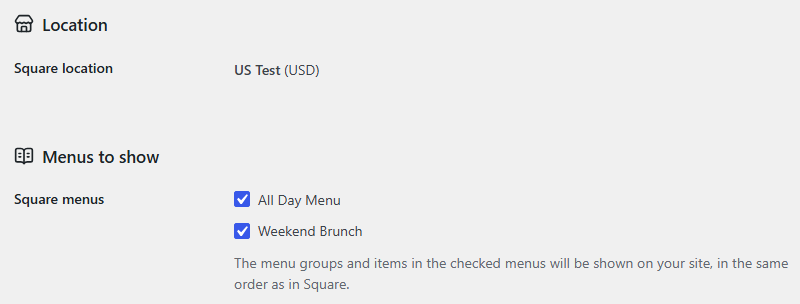
Under Location, choose the store this website is for, and save. If your Square account has only one location, there is nothing to choose, and that location is used. Then, under Menus to show, check the menus you want on your website, and save again.
The menus are the ones you made in your Square Dashboard under Items & services > Menus. Menus you do not check stay off your website.
Takeout Menu syncs the items in the menus you choose here. If you need to, make a menu just for your website in Square.
-
5Sync and create the menu page
Click Sync now. Wait until it says Done. Then click Create menu page. A page called "Menu" is made. Click View page to see it.
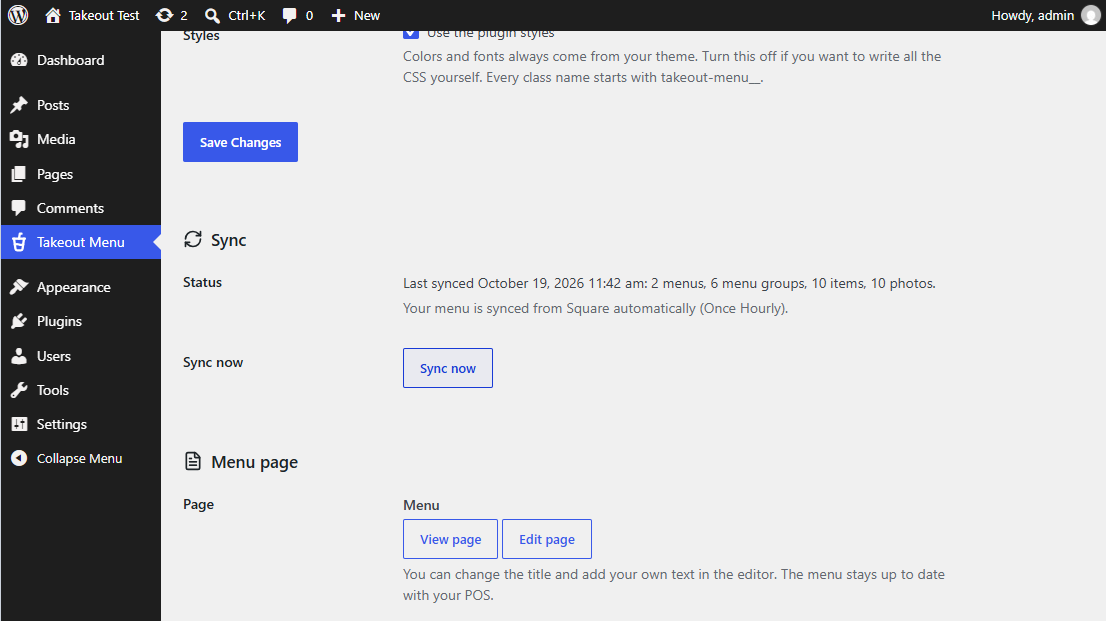
To show the page in your site's navigation, add it in your theme's menu settings (for example Appearance > Menus or the Site Editor, depending on your theme).
-
6Check how prices and taxes are shown
Tax rates come from Square. Set up your taxes in your Square Dashboard and turn them on for each item there. You do not enter tax rates in WordPress.
If you have not set up a tax rule yet, set one up in Square like this:
- Open the item in Square. Under Taxes, click Set up.
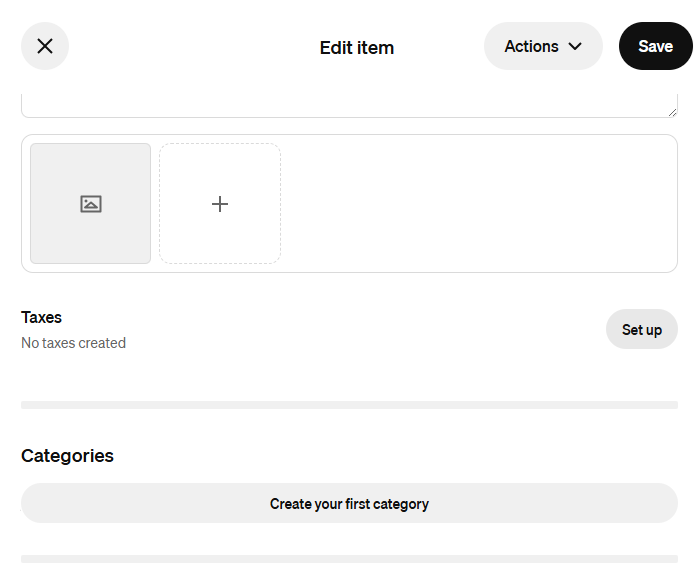
- Under Set up Sales tax, click Set up.

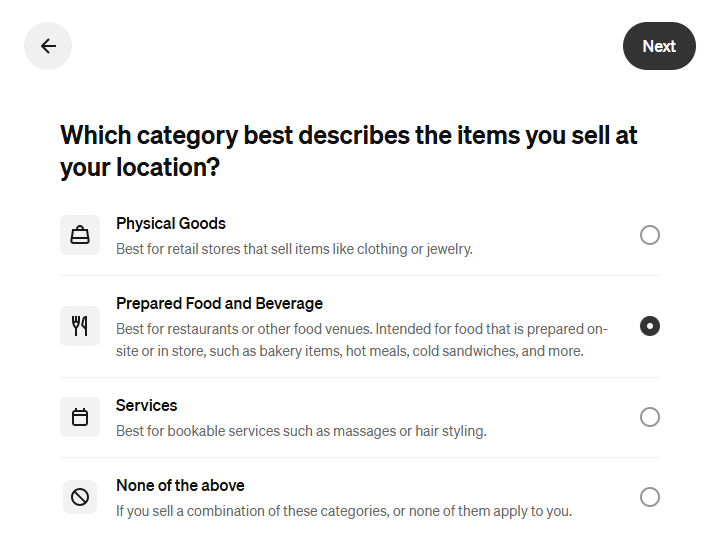
- Answer the questions about how your items are taxed, and click Next.

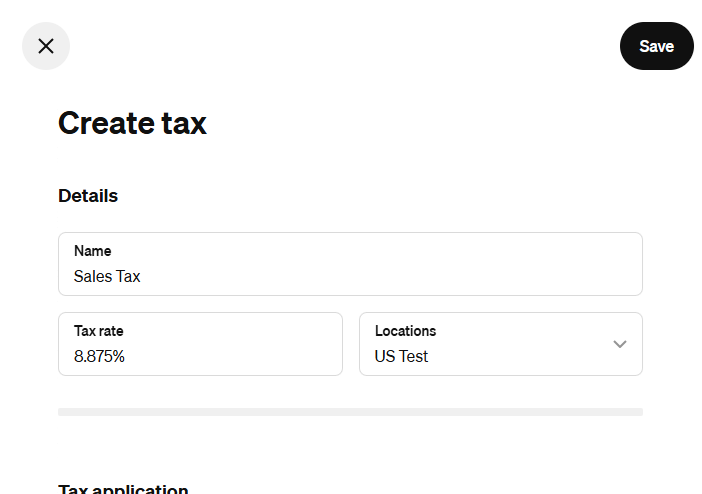
- Enter the Name and the Tax rate, choose the Locations, and click Save.
- Back in the item, Taxes shows the tax. Click Save.
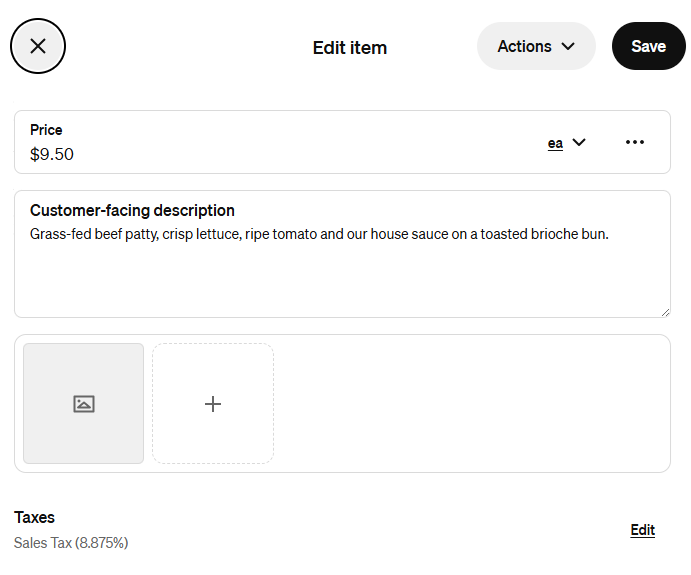
The screens above are from Square in the US. How you set up tax rules can differ by country and may change over time. For details, see Square’s help article Create and manage your tax settings. Takeout Menu simply uses the taxes you set in Square.
On the Takeout Menu settings page, under Prices, choose how prices look on your website. At first, they match how you registered them in Square (tax included or before tax).
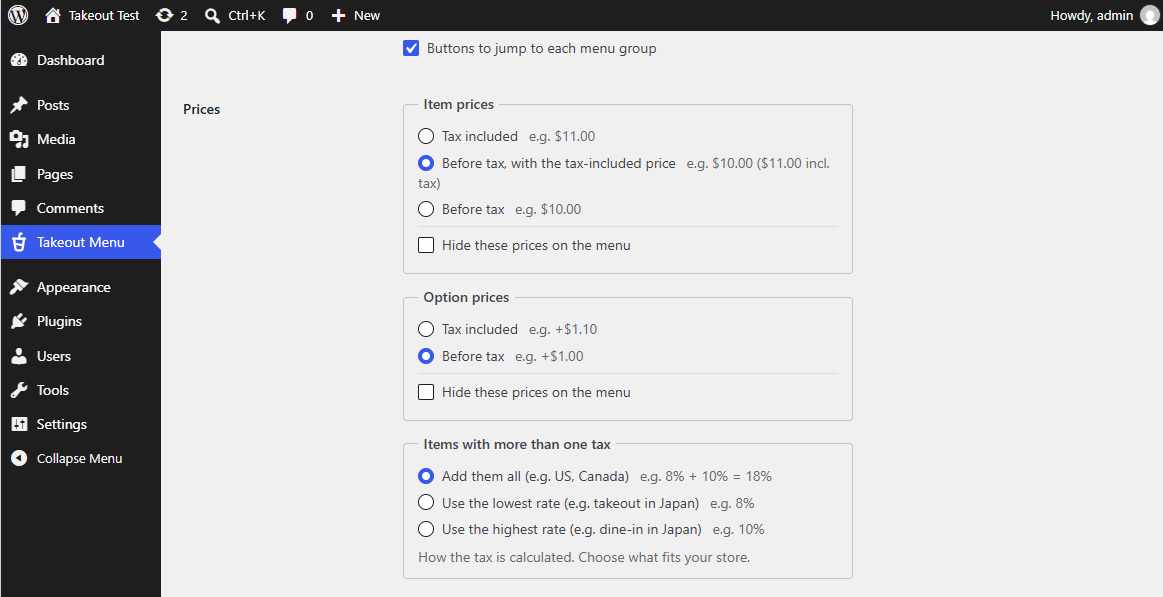
Setting Choices Item prices Tax included / Before tax, with the tax-included price (e.g. $10.00 ($11.00 incl. tax)) / Before tax. Check Hide these prices on the menu to show no item prices. Option prices Tax included / Before tax. You can also hide option prices only. Items with more than one tax Add them all (e.g. US, Canada) / Use the lowest rate (e.g. takeout in Japan) / Use the highest rate (e.g. dine-in in Japan) Items with more than one tax decides what happens when an item has two or more taxes in Square. Where taxes really add up (for example, state tax plus city tax), choose Add them all. Some stores put two taxes on one item and switch between them at the register, for example 8% for takeout and 10% for dine-in in Japan. Pick the one that fits your store: Use the lowest rate (8%) for a takeout menu, or Use the highest rate (10%) for a dine-in-only store.
Tax-included prices shown by this plugin are a guide. The final amount must be calculated again by your register at checkout. When several items are added up, the total may differ slightly because of rounding. If some items are tax-free under special rules in your area, showing prices before tax is the safest.
- Open the item in Square. Under Taxes, click Set up.
Everyday use
2. When You Change Your Menu in Square
Changes you make to your items in Square show up on your WordPress website automatically, about once an hour (except items converted to regular blocks).
When does the website change?
Your website checks Square about once an hour and follows automatically.
Want it to show right away (for example, a price change today)? Open Takeout Menu in WordPress and click Sync now.
Adding a new menu
A new menu made in Square is not shown until you choose it. Open Takeout Menu, check it under Menus to show, and save.
Adding a new item
Add the item to a menu you chose in Takeout Menu. Items that are only in menus you do not show do not appear.
Taking an item off your website (hiding it)
In Square, remove the item from the menu you chose in Takeout Menu (or delete it). It disappears at the next sync.
Adding an item card to a blog post
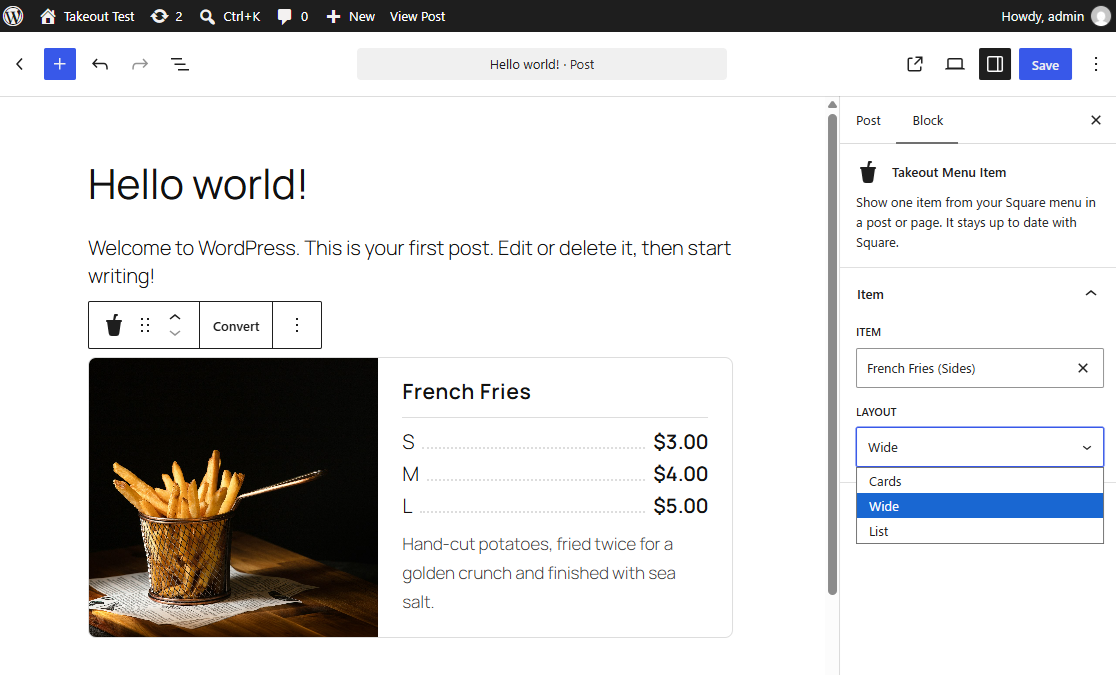
In the post editor, add the Takeout Menu Item block and choose the item. You can choose the card style (Cards, Wide or List) in the block's sidebar. When the item's details change in Square, the card updates automatically.
Freezing an item's details
Normally, an item added to a post with the block stays in sync with Square. If you convert it to regular blocks, it keeps showing the details from that moment.
- Click the item block in the post.
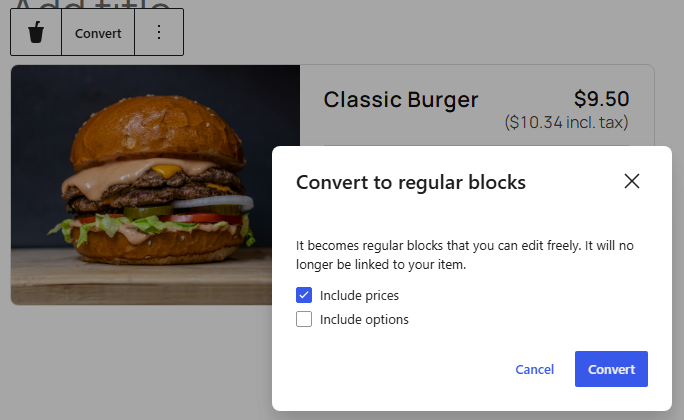
- Click Convert in the toolbar above the block.
- In Convert to regular blocks, choose what to include: Include prices (on at first) and Include options (off at first).
- Click Convert.
The item block becomes an image, a heading and paragraphs. The photo is copied to your media library. You can edit the text and the photo freely.
After converting, it is no longer linked to Square. Changes in Square do not reach the post, and it stays even if you stop selling the item. The item details popup no longer opens.
How do I know it worked?
On the Takeout Menu settings page, the Sync area shows the time of the last sync and how many menus, items and photos were brought in.
Advanced
3. For Web Designers and Developers
Shortcodes
| Shortcode | What it shows |
|---|---|
[tokurabo_takeout_menu] | All the menus chosen on the settings page. layout="cards" or layout="list". Without it, the layout from the settings page is used. |
[tokurabo_takeout_menu_item id="SQUARE_ITEM_ID"] | One item. layout="cards", "wide" or "list". Default is wide. |
Blocks
- Takeout Menu: the whole menu. Sidebar: Layout (Default = the settings page value, Cards, List).
- Takeout Menu Item: one item. Sidebar: Item (search by name), Layout (Cards, Wide, List).
Both blocks are rendered on the server each time the page is shown, so they always reflect the latest sync.
Adjusting with CSS
Fonts and colors come from your theme. To change them, turn off Use the plugin styles on the settings page and adjust them with your own CSS. Every class name starts with takeout-menu__.
.takeout-menu__menu-name { }
.takeout-menu__section-name { }
.takeout-menu__item--card { }
.takeout-menu__item--list { }
.takeout-menu__item.is-sold-out { }
How syncing works
- The plugin copies your menu into its own database tables and syncs it every hour with WP-Cron. Each run is limited to 20 seconds. If a sync is not finished, it continues automatically about a minute later (to avoid server timeouts).
- Photos are saved on your server (
wp-content/uploads/tokurabo-takeout-menu/). Visitors' browsers never connect to Square. - WP-Cron runs only when someone visits the site. On a quiet site you can disable it (
DISABLE_WP_CRON) and callwp-cron.phpfrom your server's cron. The plugin needs no change. - Sync now does not depend on WP-Cron. It runs in your browser until it is done.
Troubleshooting
| Message | What to check |
|---|---|
| Square did not accept the access token. Check the token and the environment. | The token is copied fully, and Environment matches it (Production token with Production). |
| This location has no menus yet. | Make a menu in the Square Dashboard under Items & services > Menus, then reload the settings page. |
| Another sync is running. Please wait. | Wait a few minutes and try again. |
| Items or photos look old | Click Sync now. If your site uses a page cache plugin, clear its cache. |
Logs
Detailed errors are written to wp-content/debug.log only when WP_DEBUG_LOG is enabled in wp-config.php. The admin screen shows only a short message.
When you delete the plugin
Deleting the plugin removes its tables, settings (including the token), scheduled syncs and saved photos. The menu page you created is not deleted. If you only deactivate the plugin, nothing is removed.
Download
Get Takeout Menu for Free
Tokurabo Takeout Menu for Square is free on WordPress.org.
Download from WordPress.orgYou can also install it from Plugins > Add Plugin in your WordPress dashboard.