
Never Enter Your Products Twice.
Simply connect Square (POS app), and your items, prices, and taxes will automatically sync to your WordPress site.
About
What Is Takeout Menu?
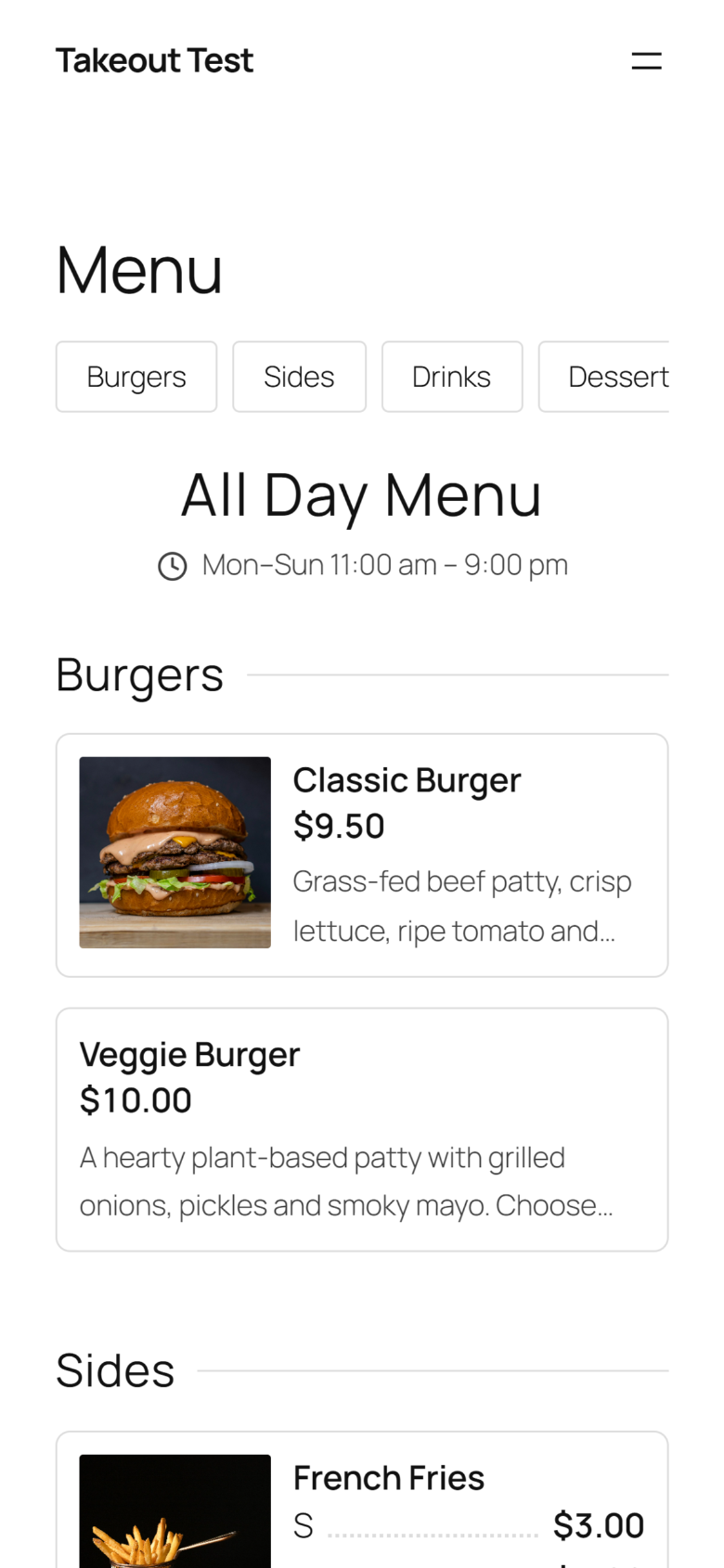
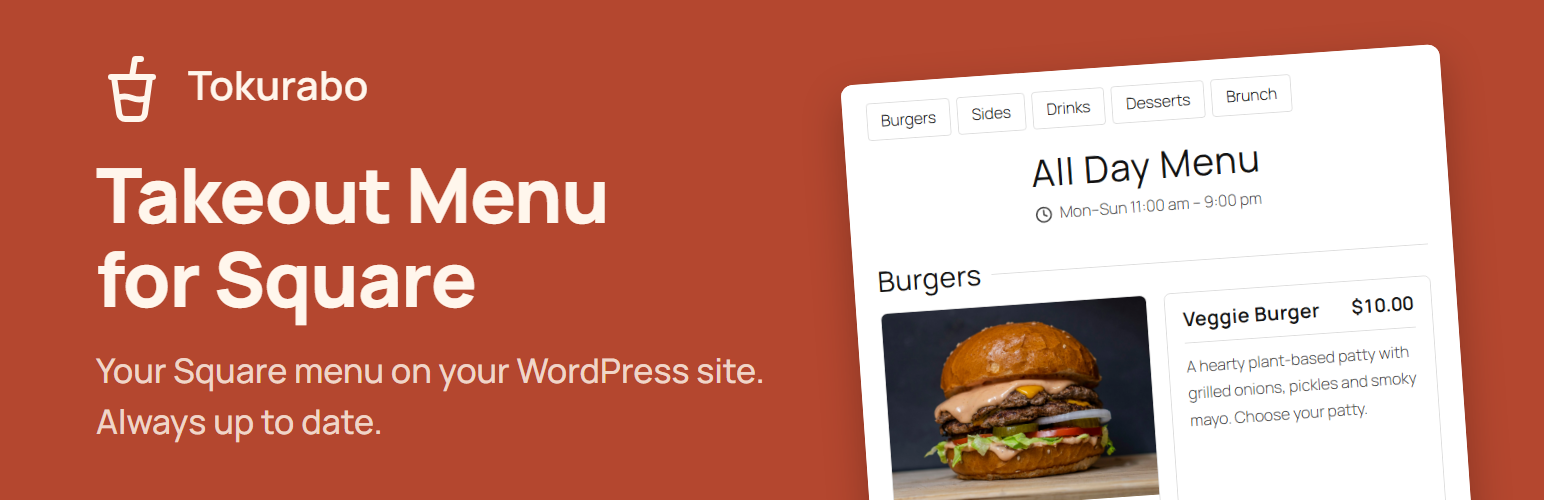
Tokurabo Takeout Menu for Square is a free WordPress plugin. It takes the items you have registered in Square (POS app) and shows them on your WordPress website: names, photos, descriptions, prices and taxes, options, and the menus you made in Square.
You keep editing your items in Square as usual. Your website follows automatically, about once an hour. It works for restaurants, cafes, shops, salons, and any other business that uses Square.
This plugin only shows your menu. It does not take orders or payments. Add the free Takeout Orders plugin to take pickup orders from this menu. To see and move those orders along on a tablet in your shop, add the paid Takeout Order Board.
What you need
- A WordPress website that you can log in to as an administrator
- A Square account (the free plan works)
Features
Why Business & Store Owners Choose Us
Automatic Sync
Whenever you change product information (images, prices, taxes) or add new items in Square (POS app), your WordPress site updates automatically.
In-Store Checkout
No WooCommerce or heavy eCommerce plugins needed. By focusing on in-store payment, you eliminate the hassle of cancellations, refund fees, and order changes after online checkout.
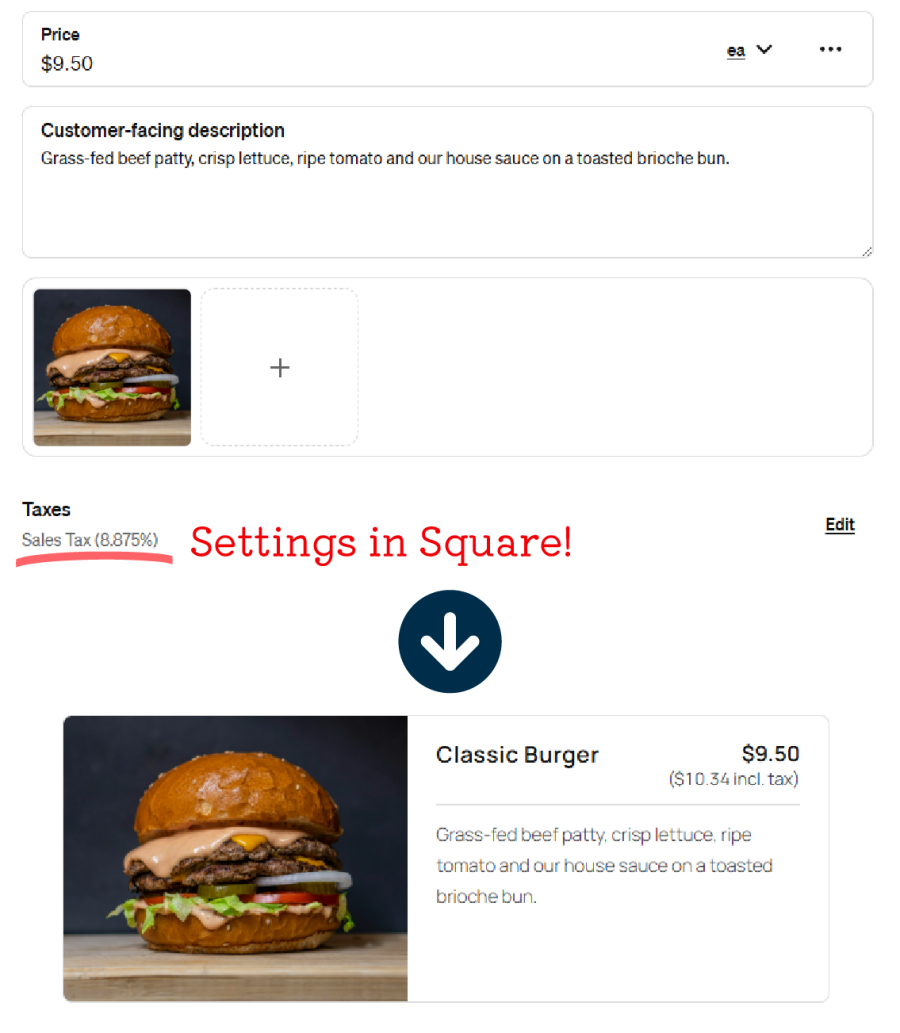
Tax & Prices Synced with Square
Just set your standard tax rates in Square. Prices of item variations and modifiers are calculated with the same taxes as your register. You can also hide prices or taxes if desired.
Flexible Product Blocks
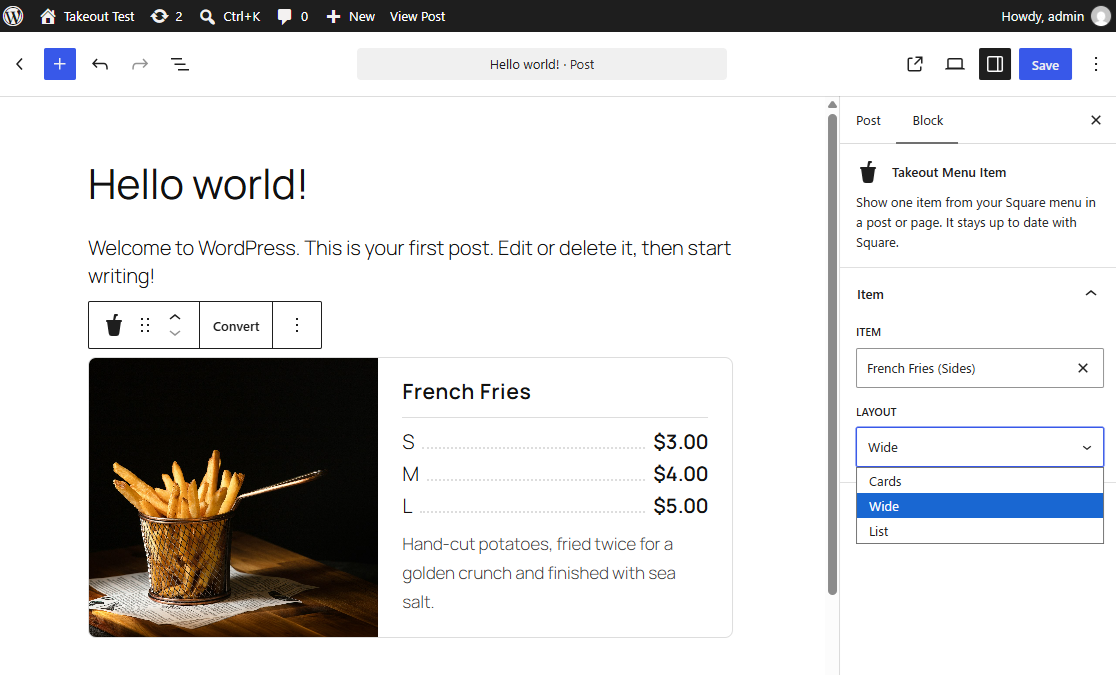
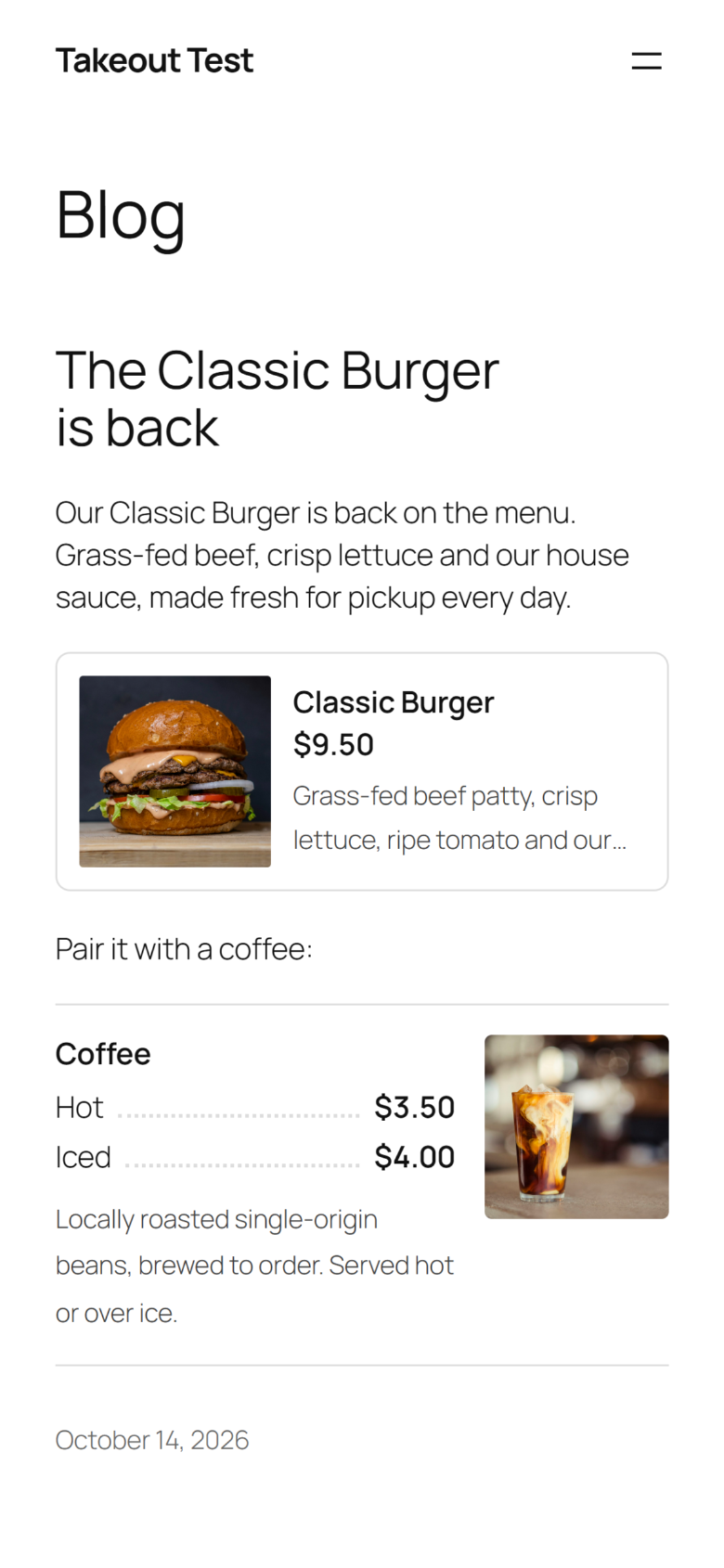
Embed items already registered in Square (POS app) directly into your WordPress blog posts or pages. These product cards stay in sync with Square, ensuring your site always displays the latest details.
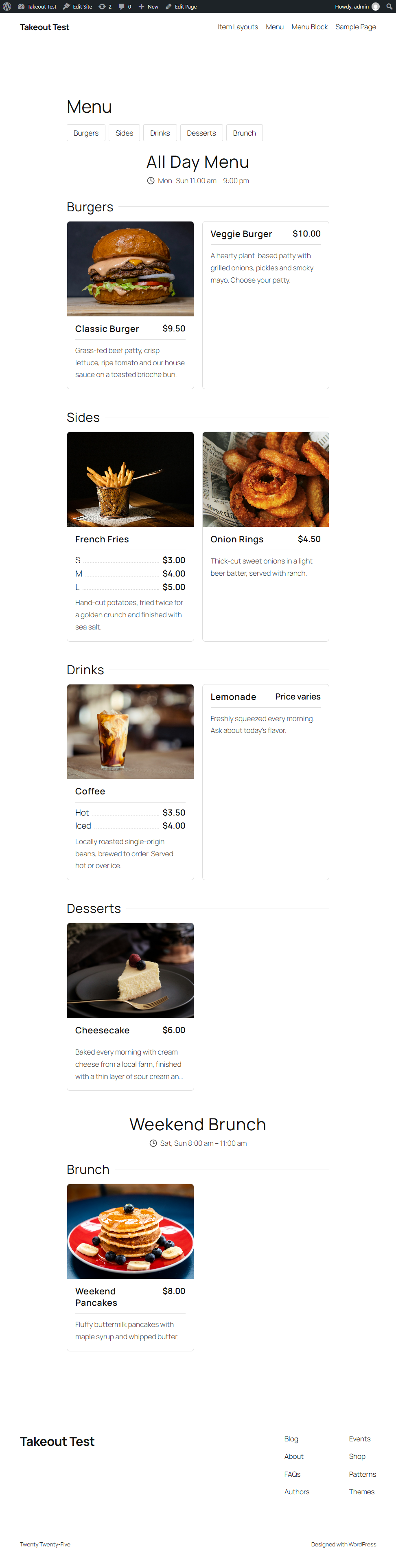
Automatic Menu Page Creation
Simply select the menus created in Square (POS app) and click a single button. Create a complete product list page in one click without the hassle of designing from scratch.
Layouts
Three Flexible Presentation Layouts
Choose the layout that best fits your brand and page design.
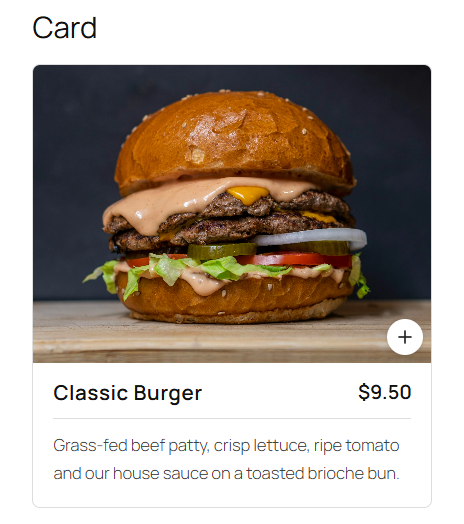
1. Cards
Clean, responsive card format with photo prominently displayed on top. Ideal for visually appealing items.
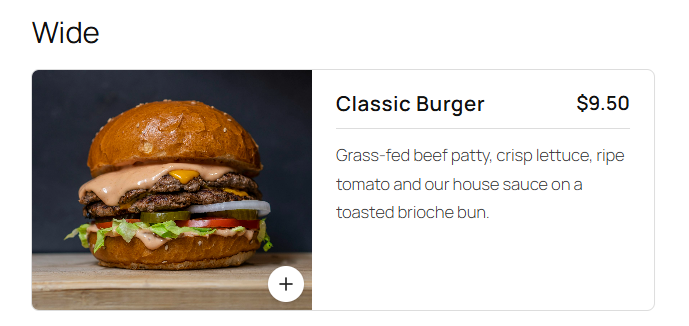
2. Wide
Horizontal banner format with photo on the left. Ideal for featured items, specials, or single products embedded in blog posts. Used with the Takeout Menu Item block.
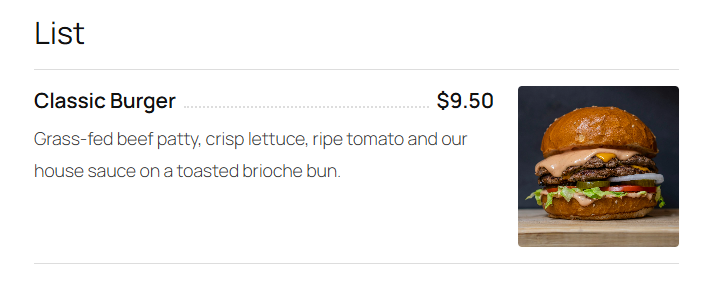
3. List
Compact, streamlined list layout with photo placed on the right. Perfect for menu-dense pages or extensive item lists.
Interactive Product Popup
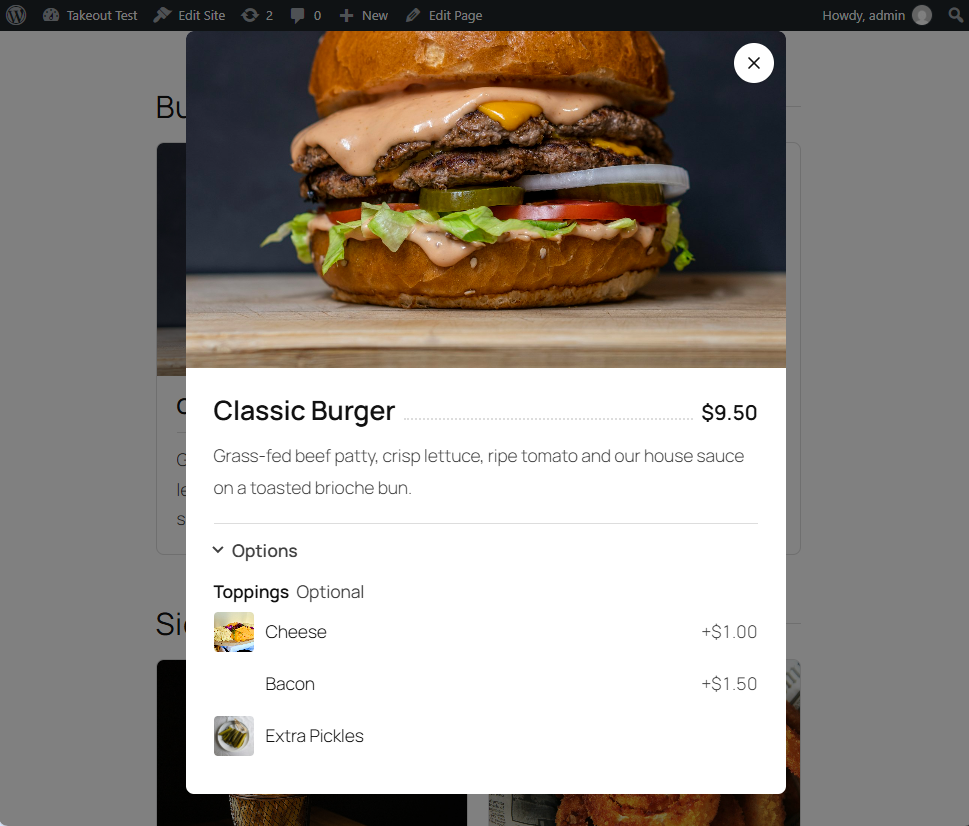
When a customer clicks an item, a bold and intuitive popup appears, showcasing photos, full descriptions, and option modifiers straight from Square.
Setup
Quick Setup in 3 Simple Steps
-
1Install & Activate
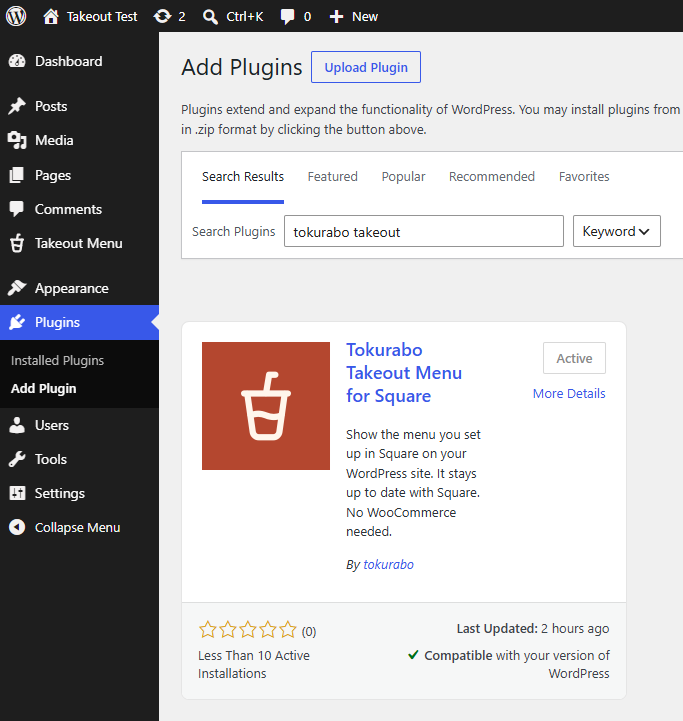
In your WordPress dashboard, go to Plugins > Add Plugin and search for Tokurabo Takeout Menu. Click Install Now, then Activate.
The plugin page is on WordPress.org (details, changelog, and support forum).
-
2Connect to Square
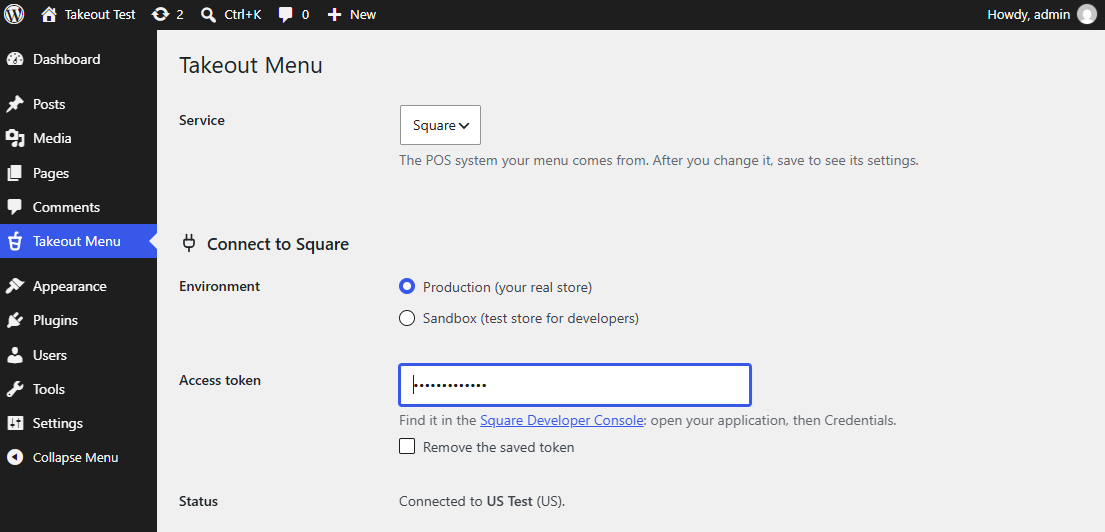
Open Takeout Menu in your admin menu. Copy the access token from the Square Developer Console (your application > Credentials), paste it, and save. Then choose your location and the menus to show, and save again.
-
3Sync & Display
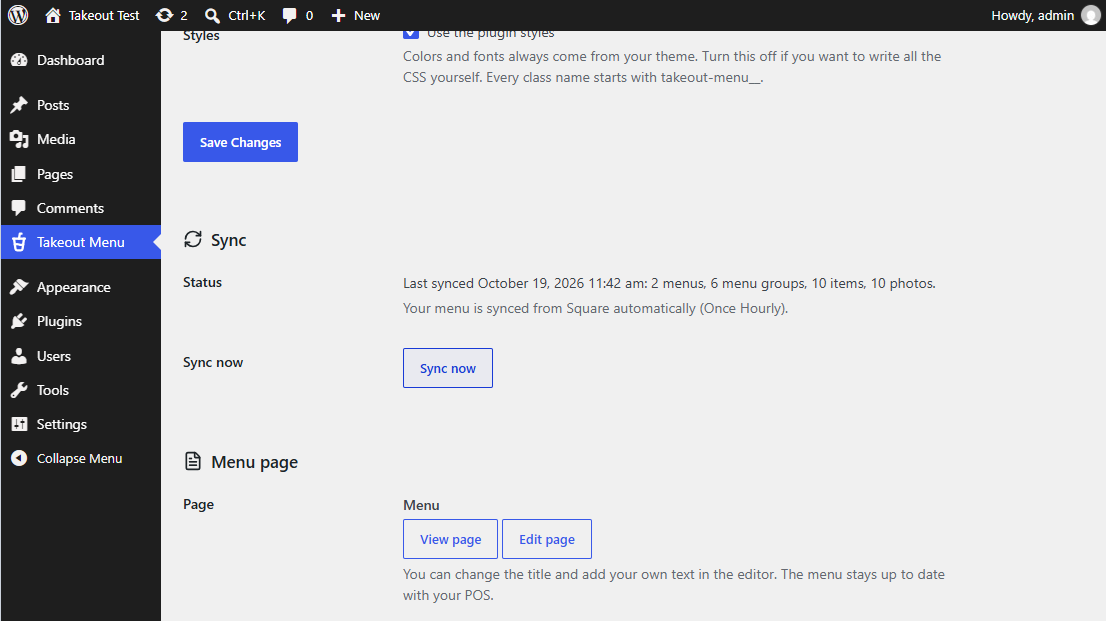
Click Sync now to bring in your menu. Then click Create menu page. A page called "Menu" is created, and you can open it with View page.
FAQ
Frequently Asked Questions
Q: Can customers place orders or pickup reservations directly through this plugin?
A: No. This plugin is designed strictly for displaying your menu and catalog. To accept pickup orders and advance reservations, please install our companion plugin, Tokurabo Takeout Orders (payments are completed at your store counter upon pickup). To see those orders on a tablet in your shop and move them along with one tap, you can also add the paid Tokurabo Takeout Order Board (status emails to customers, busy mode, seasonal pre-orders and an order history).
Q: Do I need WooCommerce?
A: No. The plugin works completely standalone without WooCommerce or heavy eCommerce tools.
Q: When I update prices or items in Square, how quickly does the website update?
A: Your site automatically syncs once every hour in the background (via WP-Cron). If you want immediate updates, simply click the Sync now button in your WordPress settings to refresh instantly.
Q: Do I have to display all items registered in my Square account?
A: No. You can freely choose which specific menus to display via checkboxes on the settings page, keeping private or in-store-only items off your website.
Q: Will having many product photos slow down my website?
A: During synchronization, photos are saved to your own web server. Your visitors' browsers never connect directly to Square, so showing photos does not depend on Square.
Q: I manage multiple locations in Square. Can I use this plugin?
A: Yes. Choose one location in the settings. Menus, items, taxes, and prices are taken from that location. One site shows one location.
Q: Can I embed a single featured item into a blog post?
A: Yes! With the included Takeout Menu Item Gutenberg block (or shortcode), you can insert a single product card anywhere in your posts or pages, and it will remain automatically synced with Square.
Q: Does this plugin work well with my existing WordPress theme?
A: Yes. Fonts, base colors, and typography naturally inherit your active WordPress theme. If you want full custom styling, you can disable the plugin's default CSS with one click and apply your own styles.
Q: Is there any cost or monthly subscription for using this plugin?
A: Tokurabo Takeout Menu is free. It works with a free Square account.
Download
Get Takeout Menu for Free
Tokurabo Takeout Menu for Square is free on WordPress.org.
Download from WordPress.orgYou can also install it from Plugins > Add Plugin in your WordPress dashboard.
Add-ons
Want to Take Orders Too?
These plugins work on top of Takeout Menu.
Takeout Orders Free
Adds a cart and an order form to your menu. Customers choose items and a pickup time, and you get an email. They pay when they pick up.
See Takeout OrdersTakeout Order Board Paid
Turns the orders from Takeout Orders into an order board on your shop's tablet. Move each order along with one tap, and the customer gets an email. Busy mode, seasonal pre-orders and an order history are included too.
See Takeout Order Board